
Run an Evaluation#
An Arena evaluation runs the same policy and task repeatedly and records the outcome of each episode. In this workflow, Arena also samples a controlled change to the environment: the wrist-camera position.
Collect data with a controlled variation sweep#
To get started, this example runs a small 10-episode sweep with an OpenPI policy on the Rubik’s-cube pick-and-place task. Only the wrist-camera position varies; the object, destination, background, and lighting remain fixed. The camera offset is drawn independently along three axes between -30 mm and 30 mm. Larger sweeps are needed for reliable sensitivity conclusions, but 10 episodes are enough to walk through the workflow.
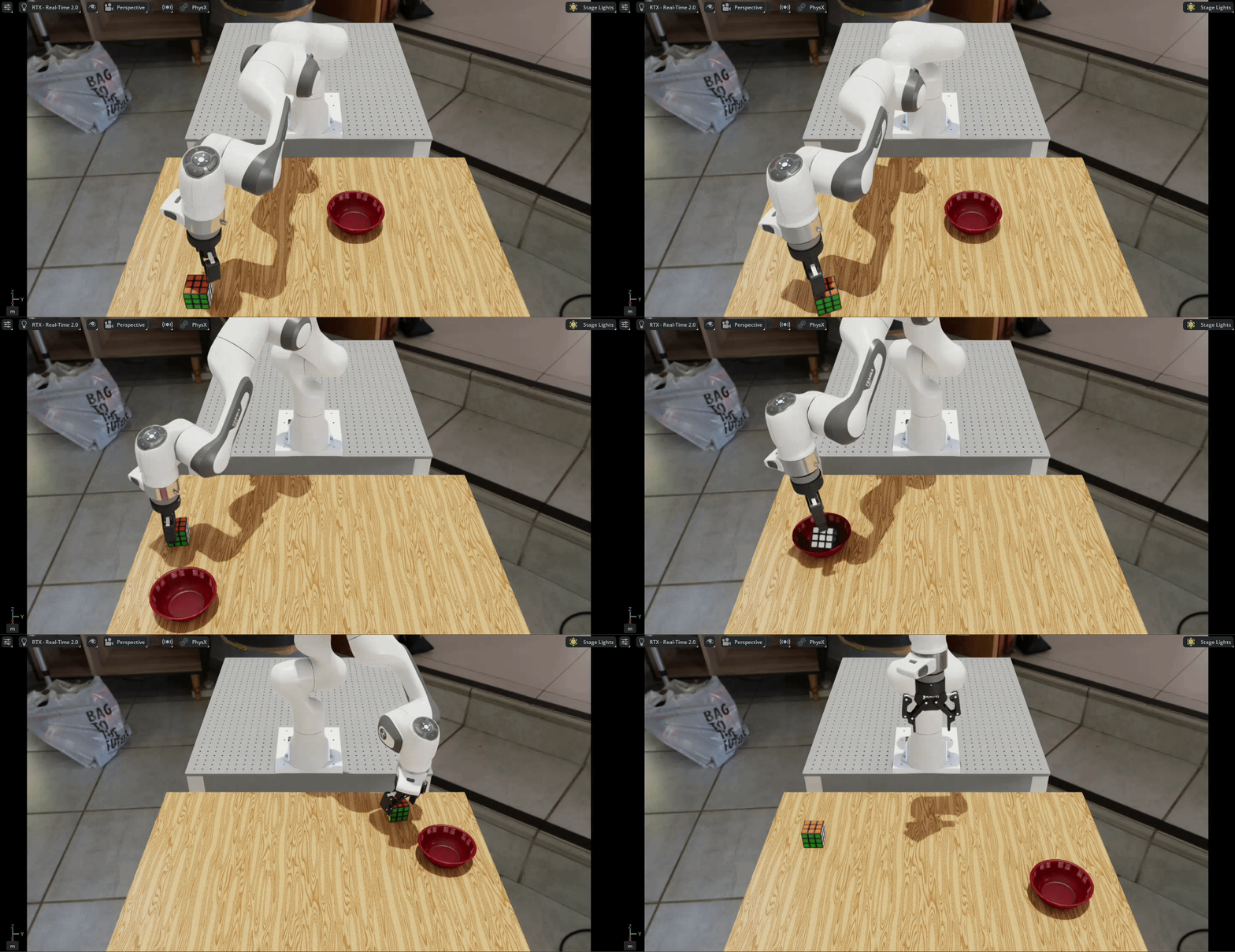
The DROID arm performs repeated Rubik’s-cube pick-and-place attempts while Arena resets the task and samples a new wrist-camera position for each episode.#
The experiment is defined by this configuration:
Configuration file (droid_pnp_camera_sensitivity_openpi_experiment.yaml)
# Copyright (c) 2026, The Isaac Lab Arena Project Developers (https://github.com/isaac-sim/IsaacLab-Arena/blob/main/CONTRIBUTORS.md).
# All rights reserved.
#
# SPDX-License-Identifier: Apache-2.0

runs:
  droid_pnp_camera_sensitivity_openpi:
    environment:
      type: pick_and_place_maple_table
      enable_cameras: true
      embodiment: droid_abs_joint_pos
      pick_up_object: rubiks_cube_hot3d_robolab
      destination_location: bowl_ycb_robolab
      hdr: home_office_robolab
    environment_builder:
      language_instruction: Pick up the Rubik's cube and place it in the bowl.
    policy:
      type: isaaclab_arena_openpi.policy.pi0_remote_policy.Pi0RemotePolicy
      policy_variant: pi05
      policy_device: cuda:0
      remote_host: 127.0.0.1
      remote_port: 8000
      openpi_embodiment_adapter: droid
    rollout_limit:
      num_episodes: 10
    # The variations to enable for this run.
    variations:
      droid_abs_joint_pos.camera_extrinsics_wrist_camera.enabled: true
      droid_abs_joint_pos.camera_extrinsics_wrist_camera.sampler_cfg.low: [-0.03, -0.03, -0.03]
      droid_abs_joint_pos.camera_extrinsics_wrist_camera.sampler_cfg.high: [0.03, 0.03, 0.03]
In the Base Docker container, set the output directory used by this workflow:
export CAMERA_SENSITIVITY_OUTPUT_DIR="/eval/camera_sensitivity_workflow"
mkdir -p "${CAMERA_SENSITIVITY_OUTPUT_DIR}"
Arena requires this directory to be empty. With the OpenPI server running, run the evaluation from the repository root:
python isaaclab_arena/evaluation/experiment_runner.py \
  --viz kit \
  --record_camera_video \
  --serve_evaluation_report \
  --evaluation_report_port 8001 \
  --experiment_output_directory "${CAMERA_SENSITIVITY_OUTPUT_DIR}" \
  --experiment_config isaaclab_arena_environments/experiment_configs/droid_pnp_camera_sensitivity_openpi_experiment.yaml
At each episode reset, Arena samples a new wrist-camera position. OpenPI then uses observations from that shifted camera to control the arm through the pick-and-place attempt.
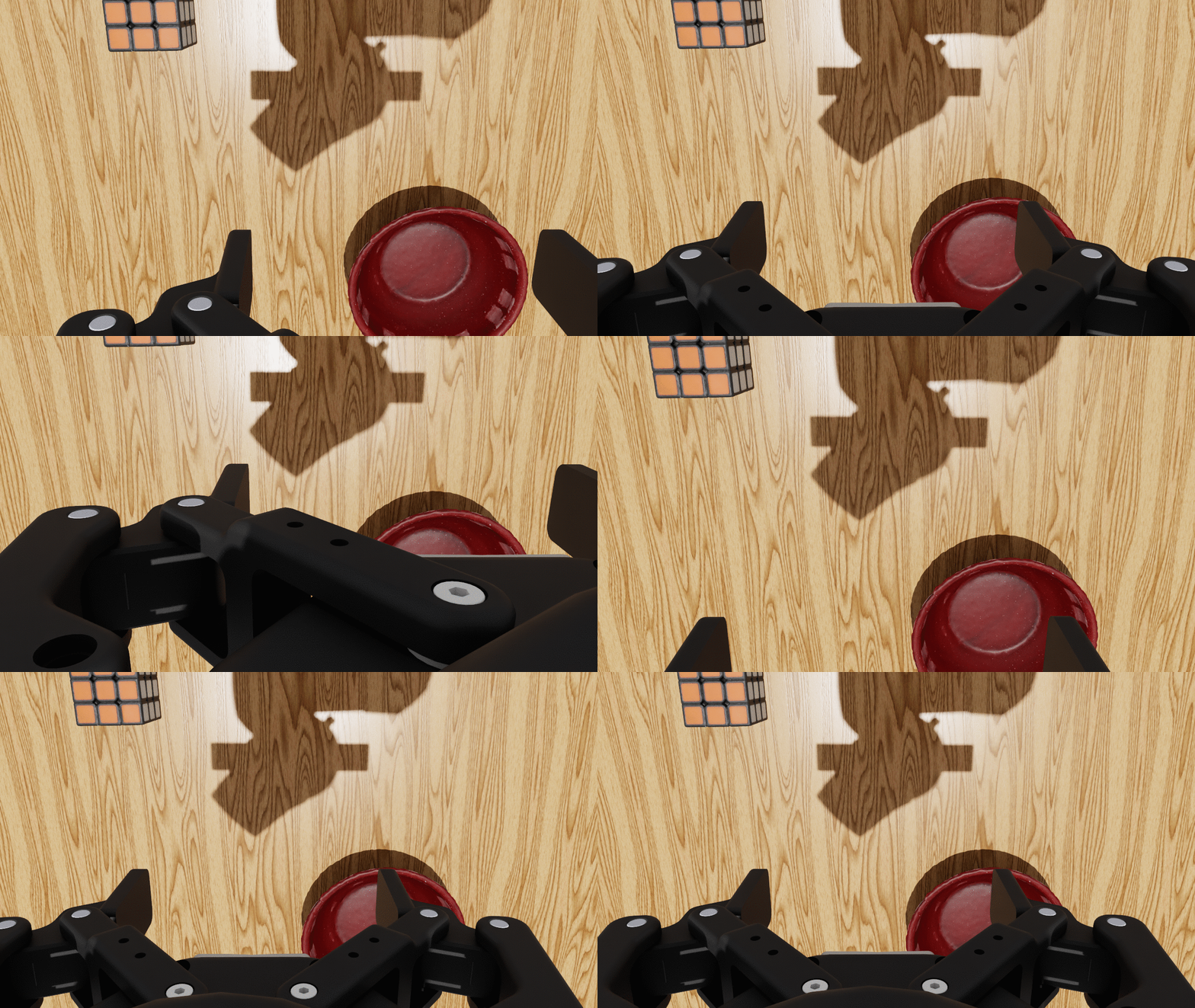
Wrist-camera views from different sampled camera positions.#
Review the evaluation report#
After the final episode, the runner prints the aggregate metrics and the address of the evaluation report. The run shown on this page produced:
======================================================================
METRICS SUMMARY
======================================================================

droid_pnp_camera_sensitivity_openpi:
  num_episodes                           10
  object_moved_rate                  0.9000
  success_rate                       1.0000
======================================================================

Wrote evaluation report with 1 task(s), 1 run(s) and 10 episode(s) to: /eval/camera_sensitivity_workflow/index.html (+2 linked page(s))
Serving evaluation report at http://localhost:8001/index.html (Ctrl+C to stop).
Your metrics may differ. On the host, open http://localhost:8001/index.html in a browser. The landing page summarizes the runs in the experiment and their episode success rates. Select the task to open its run overview:
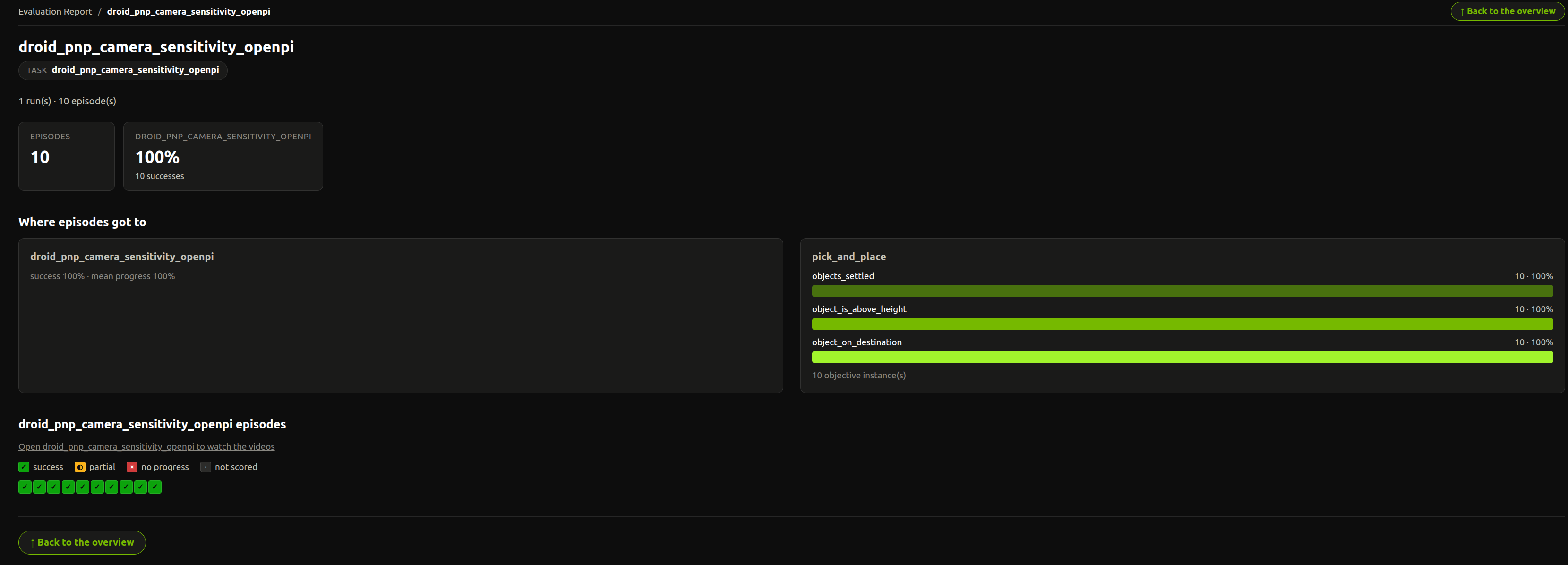
The run overview summarizes its success rate, progress through the task’s completion criteria, and the outcome of each episode.#
Select Open droid_pnp_camera_sensitivity_openpi to watch the videos to inspect the individual episodes. The recording below shows the three DROID camera views for the first episode:
Each episode includes its outcome, task progress, recorded camera views, and sampled variation values.
Press Ctrl+C in the Base Docker container when you finish reviewing the report. This stops the report server; the HTML pages, videos, and episode results remain in the output directory.
Look beyond the success rate#
The evaluation report shows how often the policy succeeded and lets you inspect what happened in each episode. It does not show how the outcome relates to the sampled wrist-camera positions.
Continue to Sensitivity Analysis to estimate and inspect the posterior distribution over camera offsets conditioned on success.