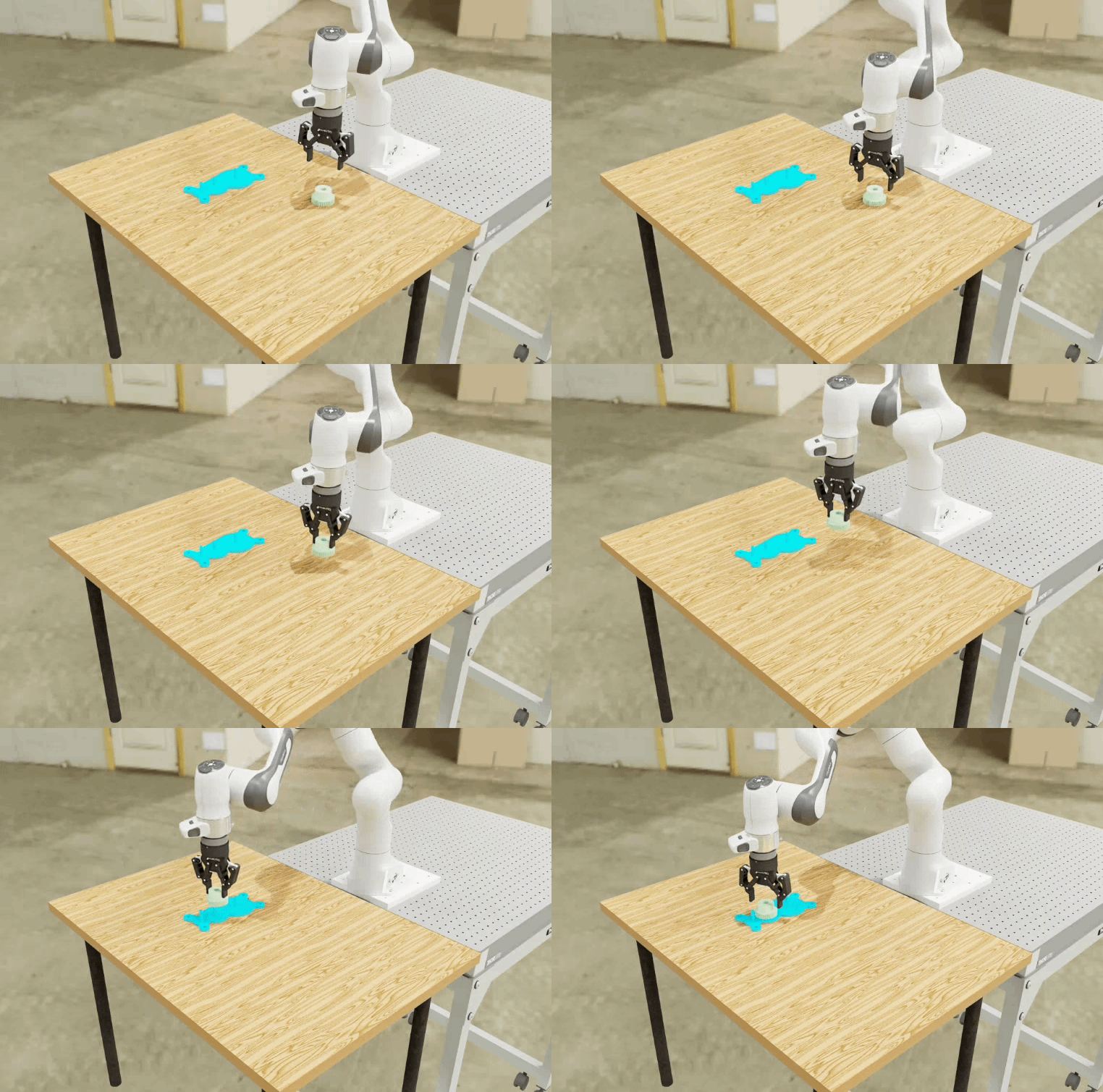

Gear Insertion#
Use a keyboard or SpaceMouse to teleoperate and pick up a gear with the DROID robot and insert it onto the peg board. This walkthrough covers previewing the environment, recording demonstrations, and replaying the saved dataset.
Task Overview#
Task ID: gear_insertion
Property |
Value |
|---|---|
Embodiment |
DROID with differential inverse kinematics control |
Scene |
Maple table with a gear and peg board |
Task |
Pick up the gear and seat it on the middle peg of the peg board |
Physics |
Newton (selected automatically by the environment) |
Teleoperation devices |
Keyboard or SpaceMouse |
Prerequisites#
Complete the Arena installation and start your
Arena runtime. Run the commands below from the repository root in the activated native
environment or inside the Base Docker container (/workspaces/isaaclab_arena).
The commands open the Kit GUI and use the GPU at cuda:0.
Create a directory for your demonstrations:
export DATASET_DIR=/datasets/gear_insertion
mkdir -p "${DATASET_DIR}"
In Docker, use the /datasets host mount described in the installation guide so your data
persists outside the container. For a native installation, set DATASET_DIR to a writable
directory such as $HOME/datasets/gear_insertion. Keep using the same terminal for the
commands below, or set DATASET_DIR again in each new terminal.
For SpaceMouse input, connect the device and ensure the runtime can access it. See the Isaac Lab SpaceMouse setup instructions for USB permissions and container access.
Step 1: Launch the Environment#
Run a zero-action policy to preview the scene:
python isaaclab_arena/evaluation/policy_runner.py \
  --policy_type zero_action \
  --num_steps 1000 \
  --num_envs 1 \
  --device cuda:0 \
  --viz kit \
  --enable_cameras \
  gear_insertion
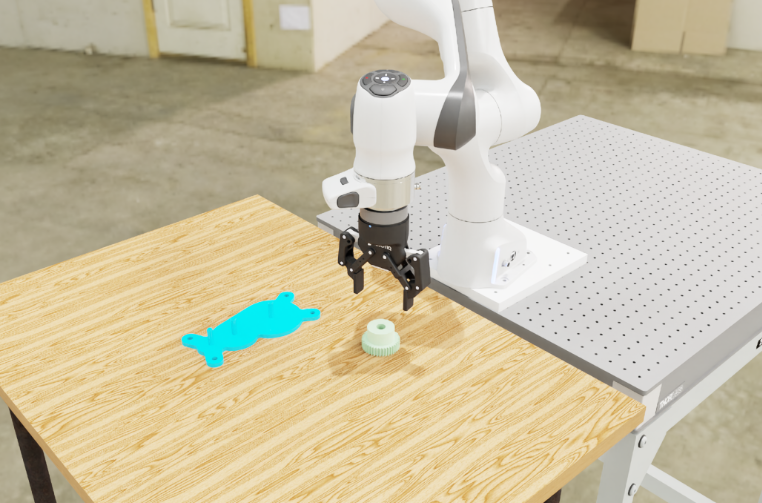
You should see the DROID robot, the gear, and the peg assembly on the table. The simulation steps with zero actions so you can inspect the scene. Newton is selected automatically.
The preview exits after 1,000 steps. Increase --num_steps for a longer preview, or press
Ctrl+C in the terminal to stop it. Finish the preview before starting recording.
Step 2: Record Demonstrations#
Choose the tab for your input device.
python submodules/IsaacLab/scripts/tools/record_demos.py \
  --task gear_insertion \
  --external_callback isaaclab_arena.environments.isaaclab_interop.environment_registration_callback \
  --device cuda:0 \
  --viz kit \
  --enable_cameras \
  --teleop_device keyboard \
  --num_demos 1 \
  --num_success_steps 1 \
  --no-reset_sim_buffer_each_episode \
  --dataset_file "${DATASET_DIR}/gear_insertion_teleop_demos.hdf5"
Controls
Action |
Input |
|---|---|
Move along the X axis |
|
Move along the Y axis |
|
Move along the Z axis |
|
Rotate about the X axis |
|
Rotate about the Y axis |
|
Rotate about the Z axis |
|
Open or close the gripper |
|
Reset the current attempt |
|
python submodules/IsaacLab/scripts/tools/record_demos.py \
  --task gear_insertion \
  --external_callback isaaclab_arena.environments.isaaclab_interop.environment_registration_callback \
  --device cuda:0 \
  --viz kit \
  --enable_cameras \
  --teleop_device spacemouse \
  --num_demos 1 \
  --num_success_steps 1 \
  --no-reset_sim_buffer_each_episode \
  --dataset_file "${DATASET_DIR}/gear_insertion_teleop_demos.hdf5"
Controls
Action |
Input |
|---|---|
Move the gripper |
Move the cap laterally or vertically |
Change the gripper orientation |
Rotate the cap |
Open or close the gripper |
Press the left button |
Reset the current attempt |
Press the right button |
Use the selected teleop device to pick up the gear and insert it onto the middle peg of the peg board.
When the environment reports success, the script saves the demonstration and reports the number of successful demonstrations recorded in the terminal. If more demonstrations are needed, the environment resets for the next attempt. Resetting an unsuccessful attempt discards that attempt.
The script exits after saving --num_demos successful demonstrations. Increase
--num_demos to record more demonstrations, or press Ctrl+C in the terminal to stop earlier.
Note
It may take a few seconds for the environment to reset after a successful demonstration as it saves the episode to the HDF5 dataset.
The recording options used here are:
--num_demos 1: collect one successful demonstration.--num_success_steps 1: save as soon as the environment reports success. The task’s own checks still require the gear to remain seated and settled before reporting success.--no-reset_sim_buffer_each_episode: Newton requirement. Preserve simulation buffers between attempts. The environment still resets after each successful demonstration or manual reset.
Step 3: Replay Demonstrations#
After recording finishes, replay the saved dataset:
python submodules/IsaacLab/scripts/tools/replay_demos.py \
  --task gear_insertion \
  --external_callback isaaclab_arena.environments.isaaclab_interop.environment_registration_callback \
  --device cuda:0 \
  --viz kit \
  --enable_cameras \
  --num_envs 1 \
  --dataset_file "${DATASET_DIR}/gear_insertion_teleop_demos.hdf5"
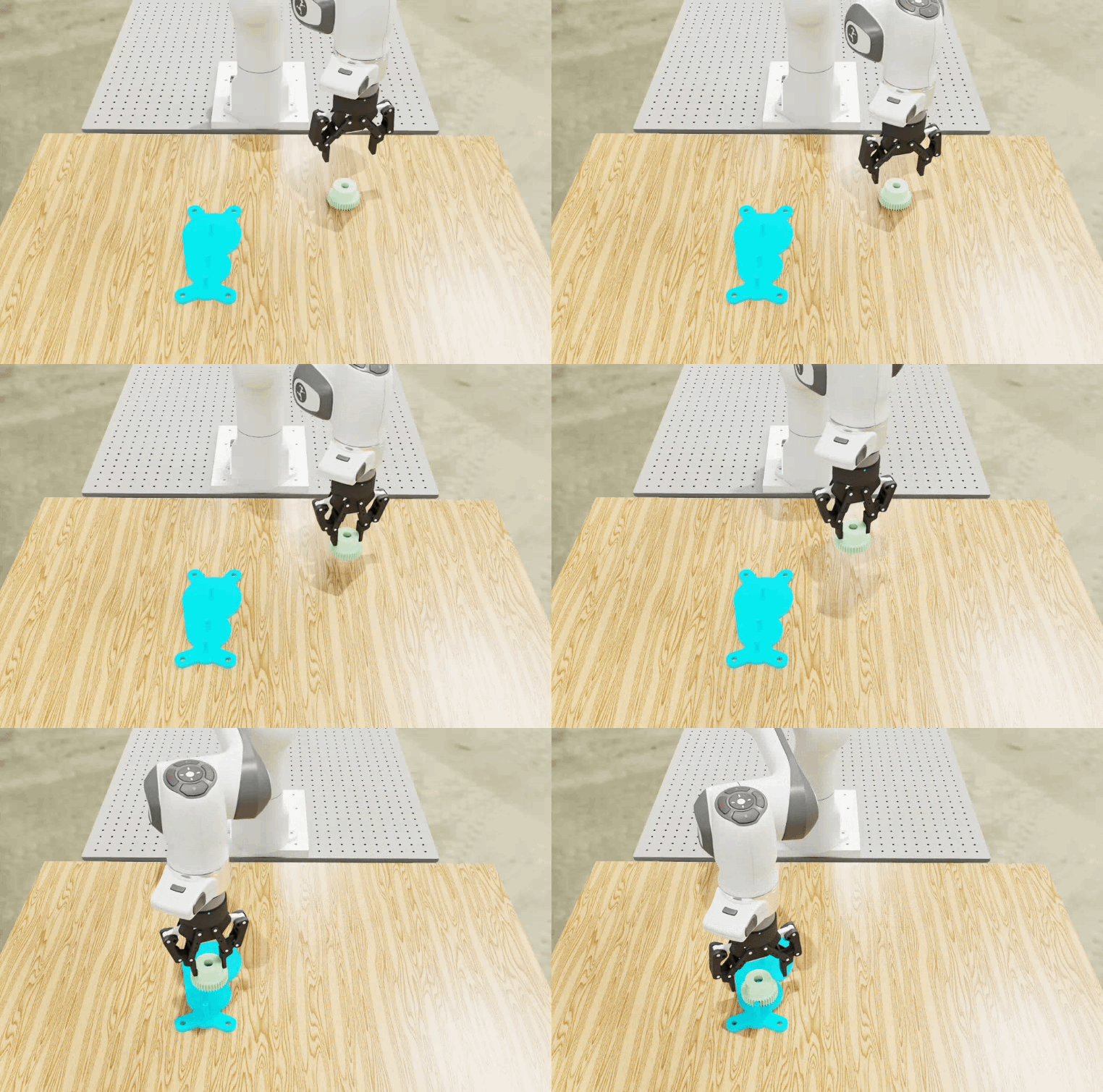
You should see the recorded motions replayed. The script replays all demonstrations in the dataset and exits when finished.
With the Kit window focused, press B to pause the replayed actions and N to resume.