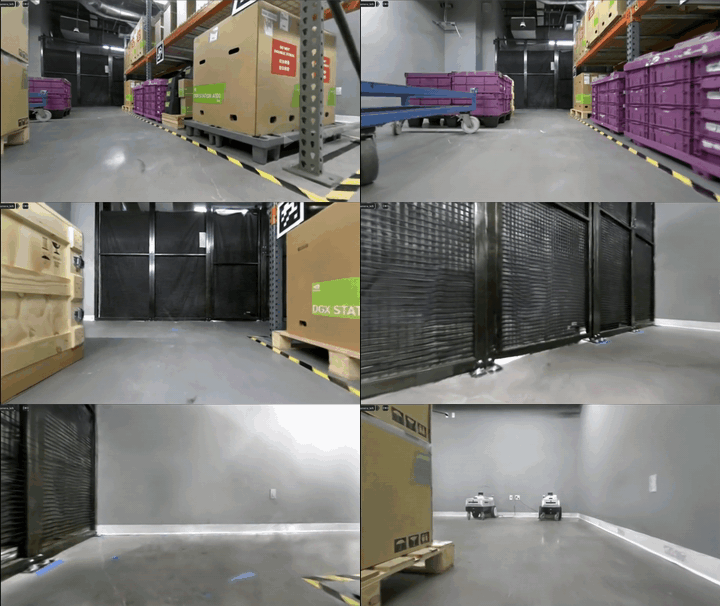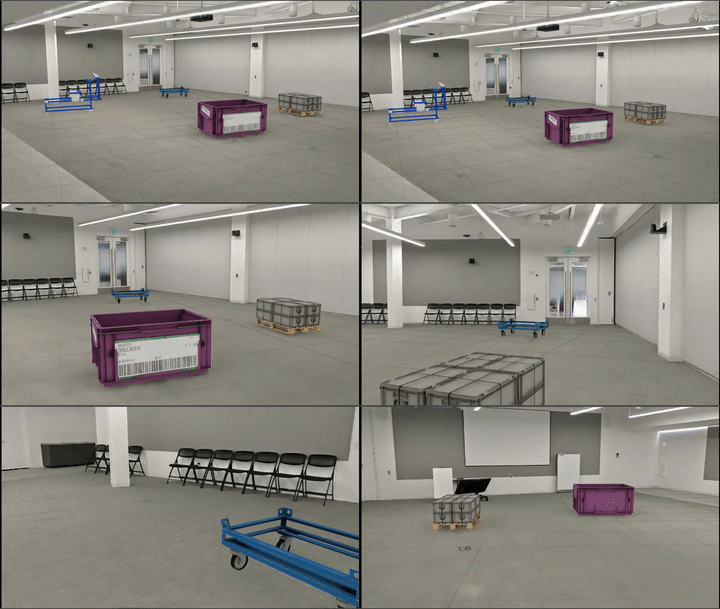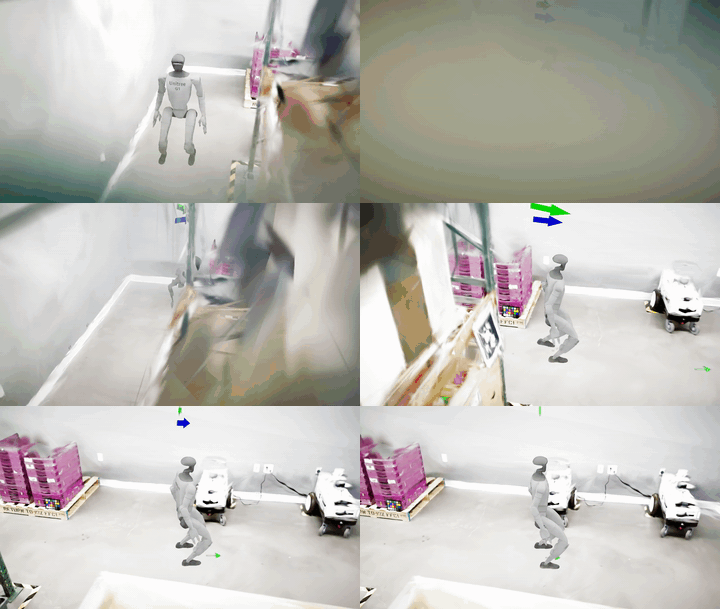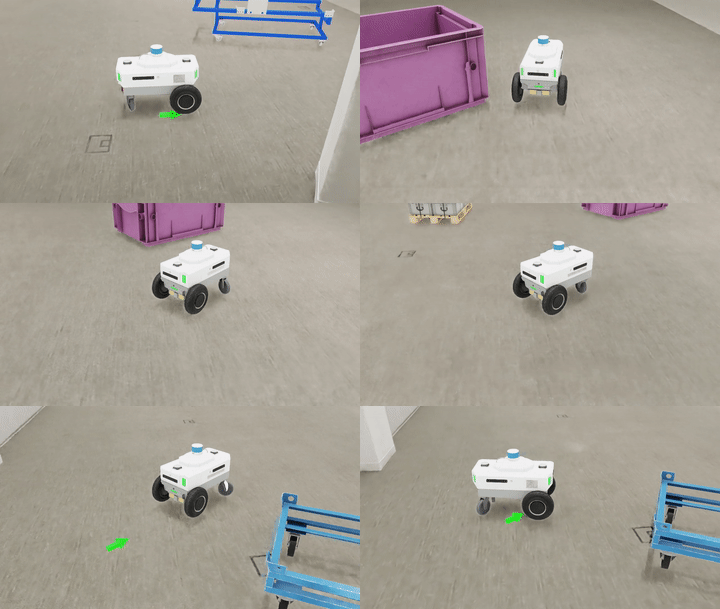

Training & Deploying COMPASS Navigation Policy with Real2Sim NuRec#

This tutorial shows you how to train and deploy COMPASS navigation policies using NuRec Real2Sim assets in the Isaac Lab simulation environment. COMPASS (Cross-embodiment Mobility Policy via Residual RL and Skill Synthesis) is a novel framework for cross-embodiment mobility. For more details about the project, please visit the COMPASS Repository.

Workflow Overview#

The following provides a high-level overview of the complete workflow:

  1. Create workspace: Create the compass-nurec workspace directory

  2. Install Isaac Sim & Isaac Lab (Terminal 1): Follow installation steps for Isaac Sim 6.0 and Isaac Lab 3.0

  3. Install COMPASS Repository (Terminal 2): Clone and set up the COMPASS repository

  4. Test setup: Verify installation using play.py

  5. Authenticate with Hugging Face: Generate access token and run hf auth login --token <token>

  6. Download assets (can be done in parallel):

    • Download X-Mobility checkpoint: hf download nvidia/X-Mobility x_mobility-nav2-semantic_action_path.ckpt

    • Download COMPASS USD assets: hf download nvidia/COMPASS compass_usds.zip

    • Download NuRec Real2Sim assets: hf download nvidia/PhysicalAI-Robotics-NuRec --repo-type dataset

  7. Prepare assets:

    • Extract and place usd/ folder into compass/rl_env/exts/mobility_es/mobility_es/

    • Place environment files (e.g., nova_carter-galileo/) in the appropriate location

  8. Train Residual RL Policy: Run training with run.py and train_config_real2sim.gin

  9. Evaluate Trained Policy: Run evaluation with run.py and eval_config_real2sim.gin

  10. Export to ONNX / TensorRT: Convert the trained model for deployment

  11. ROS2 Deployment / Sim-to-Real Transfer: Deploy the policy for real-world use

Setup#

Note

This tutorial is for Ubuntu 22.04 and the OVX with RTX platform. It is intended for Isaac Lab 3.0.0 and Isaac Sim 6.0.0.

Create a Workspace#

Start by creating a dedicated workspace directory for this project:

mkdir compass-nurec
cd compass-nurec

Terminal 1 — Isaac Lab & Isaac Sim Installation#

Follow these steps in your first terminal to install Isaac Sim and Isaac Lab.

  1. Install Isaac Sim 6.0. The supported installation methods are:

  2. Clone the Isaac Lab repository and check out the v3.0 tag (or the develop branch for testing):

git clone https://github.com/isaac-sim/IsaacLab.git
cd IsaacLab
git fetch origin
git checkout v3.0
  1. Set the required environment variables:

Note

This step is only required if Isaac Sim was installed via the binary download. If you installed Isaac Sim via pip, these variables are not needed.

# Isaac Sim root directory
export ISAACSIM_PATH="${HOME}/isaacsim"

# Isaac Sim python executable
export ISAACSIM_PYTHON_EXE="${ISAACSIM_PATH}/python.sh"
  1. Verify that Isaac Sim starts correctly:

${ISAACSIM_PATH}/isaac-sim.sh
  1. Create a symbolic link to Isaac Sim inside the Isaac Lab directory:

ln -s ${ISAACSIM_PATH} _isaac_sim
  1. Create a dedicated conda environment and install Isaac Lab:

# Create the conda environment
./isaaclab.sh --conda env_isaaclab_3.0_compass

# Activate the environment
conda activate env_isaaclab_3.0_compass

# Install Isaac Lab
./isaaclab.sh --install
  1. Verify the Isaac Lab installation:

./isaaclab.sh -p scripts/tutorials/00_sim/create_empty.py --visualizer kit

Terminal 2 — COMPASS Installation#

Open a second terminal and follow these steps to install the COMPASS repository.

  1. Activate the conda environment created in Terminal 1:

conda deactivate
conda activate env_isaaclab_3.0_compass
  1. Clone the COMPASS repository and check out the NuRec-compatible branch:

git clone https://github.com/NVlabs/COMPASS.git
cd COMPASS
git fetch
git checkout samc/support_nurec_assets_isaaclab_3.0
  1. Set the path to your Isaac Lab installation:

export ISAACLAB_PATH=</path/to/IsaacLab>
  1. Install the Python dependencies:

${ISAACLAB_PATH}/isaaclab.sh -p -m pip install -r requirements.txt
  1. Install the X-Mobility base policy package:

${ISAACLAB_PATH}/isaaclab.sh -p -m pip install x_mobility/x_mobility-0.1.0-py3-none-any.whl
  1. Install the mobility_es Isaac Lab extension:

cd compass/rl_env
${ISAACLAB_PATH}/isaaclab.sh -p -m pip install -e exts/mobility_es
cd -

Testing the Setup#

Run the following command from the COMPASS directory to verify the setup:

cd compass/rl_env
${ISAACLAB_PATH}/isaaclab.sh -p scripts/play.py --enable_cameras --visualizer kit
cd -

Downloading Assets & Checkpoints#

Authentication#

Before downloading assets, you need to authenticate with Hugging Face. Follow the Hugging Face security tokens documentation to generate a Hugging Face access token.

Once you have generated your access token, authenticate using:

hf auth login --token <generated access token>

1. Pre-trained X-Mobility checkpoint

Download the checkpoint using the Hugging Face CLI:

hf download nvidia/X-Mobility x_mobility-nav2-semantic_action_path.ckpt --local-dir <compass-nurec>/X-Mobility

Alternatively, you can download it manually from: https://huggingface.co/nvidia/X-Mobility/blob/main/x_mobility-nav2-semantic_action_path.ckpt

2. COMPASS USD Assets

Download the pre-packaged COMPASS USD assets using the Hugging Face CLI:

hf download nvidia/COMPASS compass_usds.zip --local-dir <compass-nurec>/COMPASS

Alternatively, you can download it manually from: https://huggingface.co/nvidia/COMPASS/blob/main/compass_usds.zip

Extract the downloaded compass_usds.zip file. Then move/copy the usd folder from the extracted location:

<download_path>/compass_usds/groot_mobility_rl_es_usds/usd

into the COMPASS extension directory:

# Ensure that you are in COMPASS root directory
compass/rl_env/exts/mobility_es/mobility_es/

3. NuRec Real2Sim Assets

Download the NuRec Real2Sim assets from the PhysicalAI-Robotics-NuRec dataset on Hugging Face using the Hugging Face CLI:

hf download nvidia/PhysicalAI-Robotics-NuRec --repo-type dataset --local-dir <compass-nurec>/PhysicalAI-Robotics-NuRec

Alternatively, you can download them manually from the PhysicalAI-Robotics-NuRec dataset on Hugging Face:

Note

You need to agree to the dataset terms on Hugging Face before accessing the files.

The dataset provides several environments. For COMPASS, download the environment(s) you need (e.g., nova_carter-galileo) and place the extracted files under the COMPASS extension directory:

# Ensure that you are in COMPASS root directory
compass/rl_env/exts/mobility_es/mobility_es/usd/<environment_name>/

For example, for the Galileo environment (nova_carter-galileo):

compass/rl_env/exts/mobility_es/mobility_es/usd/nova_carter-galileo/
├── stage.usdz
├── occupancy_map.yaml
├── occupancy_map.png
└── 3dgrt
    ├── last.usdz
    ├── real2sim_galileo.usd
    └── omap
        ├── occupancy_map.yaml
        └── occupancy_map.png

Note

The following are the available COMPASS compatible scenes from the NuRec dataset:

Environment Name

Description

Contains Mesh

nova_carter-galileo

Galileo lab in NVIDIA — aisles, shelves, and boxes

Yes

nova_carter-cafe

NVIDIA cafe — open area with natural lighting

Yes

nova_carter-wormhole

Conference room some chairs and tables

Yes

hand_hold-endeavor-livingroom

Living room in NVIDIA Endeavor building

Yes

hand_hold-endeavor-andoria

Meeting room in NVIDIA Endeavor building

Yes

hand_hold-endeavor-wormhole

Conference room in NVIDIA Endeavor building

Yes

hand_hold-voyager-babyboom-2

Conference room in NVIDIA Voyager building

Yes

Training the Policy#

Training Configuration#

The training configuration for NuRec Real2Sim environments is specified in configs/train_config_real2sim.gin. This configuration includes optimized settings for Real2Sim environments:

  • Collision checking distances: Tuned for Real2Sim environments (0.5m for both goal and start poses)

  • Precomputed valid poses: Enabled for faster pose sampling in constrained environments

  • compute_orientations: Set to True to compute orientations for the start and goal poses.

  • Environment spacing: Set to 500m to accommodate larger Real2Sim scenes

Training the Residual RL Specialist#

Execute the following command from the COMPASS directory (Terminal 2) to train a residual RL specialist policy for NuRec Real2Sim environments.

${ISAACLAB_PATH:?}/isaaclab.sh -p run.py \
    -c configs/train_config_real2sim.gin \
    -o <output_dir> \
    -b <path/to/x_mobility_ckpt> \
    --embodiment <embodiment_type> \
    --environment nova_carter-galileo \
    --num_envs 64 \
    --video \
    --video_interval 1 \
    --visualizer kit \
    --enable_cameras \
    --precompute_valid_poses

Note

To run in headless mode, either omit the --visualizer kit flag or specify --visualizer None.

Where:

  • <output_dir>: Directory where training outputs and checkpoints will be saved

  • <path/to/x_mobility_ckpt>: Path to the downloaded X-Mobility checkpoint

  • <embodiment_type>: One of h1, spot, carter, g1, or digit

  • --environment nova_carter-galileo: Specifies the NuRec Real2Sim Galileo environment

The training will run for the number of iterations specified in the config file (default: 1000 iterations). The resulting checkpoint will be stored in <output_dir>/checkpoints/ with the filename model_<iteration_number>.pt. Videos will be saved in <output_dir>/videos/.

Note

The GPU memory usage is proportional to the number of environments. For example, 64 environments will use around 30-40GB memory. Reduce --num_envs if you have limited GPU memory.

For Real2Sim environments, it’s recommended to use --precompute_valid_poses flag to precompute valid pose locations, which significantly speeds up pose sampling in constrained environments. For very tight spaces, it’s recommended to use --compute_orientations flag to compute orientations for the start and goal poses. Orientation computation is slow so use it only if necessary.

Advanced Training Options#

You can customize the training by modifying the gin config file or using command-line arguments:

  • Collision distances: Adjust goal_pose_collision_distance and start_pose_collision_distance in the config

  • Precompute valid poses: Set precompute_valid_poses = True in the config or use --precompute_valid_poses flag

  • Compute orientations: Set compute_orientations = True in the config or use --compute_orientations flag

  • Number of iterations: Modify num_iterations in the config

  • Number of environments: Use --num_envs command-line argument

Testing the Trained Policy#

Evaluate the trained policy#

Execute the following command from the COMPASS directory to evaluate the trained policy checkpoint.

${ISAACLAB_PATH:?}/isaaclab.sh -p run.py \
    -c configs/eval_config_real2sim.gin \
    -o <output_dir> \
    -b <path/to/x_mobility_ckpt> \
    -p <path/to/residual_policy_ckpt> \
    --embodiment <embodiment_type> \
    --environment nova_carter-galileo \
    --num_envs <num_envs> \
    --video \
    --video_interval 1 \
    --enable_cameras \
    --visualizer kit

Note

To run in headless mode, either omit the --visualizer kit flag or specify --visualizer None.

Where:

  • <path/to/residual_policy_ckpt>: Path to the trained residual policy checkpoint (e.g., <output_dir>/checkpoints/model_1000.pt)

  • --video: Enable video recording during evaluation

  • --video_interval: Record video every N iterations

The evaluation will run for the number of iterations specified in the eval config file. Videos will be saved in <output_dir>/videos/.

Model Export#

Export to ONNX or JIT#

Export the trained residual RL specialist policy to ONNX or JIT formats for deployment.

# <output_dir>: training output directory, <path/to/COMPASS>: root of the cloned COMPASS repo
cd <output_dir>/
python3 <path/to/COMPASS>/onnx_conversion.py \
    -b <x_mobility_ckpt> \
    -r <residual_policy_ckpt> \
    -e <embodiment_type> \
    -o <output.onnx> \
    -j <output.jit>

Convert ONNX to TensorRT#

For optimized inference, convert the ONNX model to TensorRT.

# <output_dir>: training output directory, <path/to/COMPASS>: root of the cloned COMPASS repo
cd <output_dir>/
python3 <path/to/COMPASS>/trt_conversion.py \
    -o <model.onnx> \
    -t <output.engine>

Deployment#

ROS2 Deployment#

The trained COMPASS policy can be deployed using the ROS2 deployment framework. Refer to the COMPASS ROS2 Deployment Guide for detailed instructions on deploying the policy in simulation or on real robots.

The ROS2 deployment supports:

  • Isaac Sim integration for simulation testing

  • Zero-shot sim-to-real transfer for real robot deployment

  • Object navigation integration with object localization modules

Sim-to-Real Deployment#

COMPASS policies trained on NuRec Real2Sim environments are designed for zero-shot sim-to-real transfer. The Real2Sim assets provide a bridge between simulation and reality, enabling policies trained in simulation to work directly on real robots.

For sim-to-real deployment:

  1. Export the trained policy to ONNX or TensorRT format (see Model Export section)

  2. Use the ROS2 deployment framework to run inference on the real robot

  3. Integrate with visual SLAM (e.g., cuVSLAM) for robot state estimation

  4. The policy will output velocity commands based on camera observations and goal poses

Troubleshooting#

Common Issues#

Issue: “Failed to sample collision free poses”

This error occurs when the collision checking is too strict for the environment. Solutions: - Reduce goal_pose_collision_distance and start_pose_collision_distance in the config - Enable precompute_valid_poses to precompute valid pose locations - Check that the occupancy map files are correctly placed in the omap/ directory

Issue: High GPU memory usage

  • Reduce the number of environments using --num_envs

  • For Real2Sim environments, start with 32-64 environments

Issue: Slow pose sampling

  • Enable --precompute_valid_poses flag to precompute valid poses

  • This is especially important for Real2Sim environments with constrained spaces

Configuration Tips#

For NuRec Real2Sim environments: - Use collision distances of 0.5m or less for more constrained environments - Enable precomputed valid poses for constrained environments - Use environment spacing of 500m to accommodate larger scenes