


Setting up Isaac Capture with CloudXR#
Isaac Capture (NVIDIA/IsaacCapture) is the unified framework for high-fidelity teleoperation in Isaac Lab. It provides standardized device interfaces, a flexible retargeting pipeline, and bundled NVIDIA CloudXR streaming for immersive XR-based teleoperation.
This guide walks you through setting up CloudXR, connecting an XR device, and running your first teleoperation session. For additional details see the Isaac Capture Quick Start.
Note
Isaac Lab currently pins the 1.4 isaacteleop distribution and import package. Upstream
renamed both to isaaccapture in 1.6, so the isaacteleop commands and imports in this
guide are intentional. See the Isaac Capture migration guide for details.
Tip
For architecture details, retargeting pipelines, control scheme recommendations, and how to add new embodiments or devices, see the Isaac Capture page.
Prerequisites#
Isaac Lab installed with the
teleopextra (see Install Isaac Capture below). That section also covers the system libraries the CloudXR runtime needs.Isaac Lab workstation
Ubuntu 22.04 or Ubuntu 24.04
CPU: x86_64 (ARM support coming soon)
GPU: NVIDIA GPU required. For 45 FPS with 120 Hz physics:
CPU: AMD Ryzen Threadripper 7960x or higher
GPU: 1x RTX PRO 6000 (or equivalent, e.g. 1x RTX 5090) or higher
Memory: 64 GB RAM
For driver requirements see the Technical Requirements guide.
Python 3.12 or newer
CUDA 12.8 (recommended)
NVIDIA Driver 580.95.05 (recommended)
Wifi 6 capable router
A strong wireless connection is essential for a high-quality streaming experience. Refer to the CloudXR Network Setup guide for detailed requirements, router configuration, and troubleshooting.
We recommend a dedicated router; concurrent usage will degrade quality.
The XR device and Isaac Lab workstation must be IP-reachable from one another. Many institutional wireless networks prevent device-to-device connectivity.
Note
Teleoperation is not currently supported on DGX Spark.
Workstation capability check#
When a teleop session starts, Isaac Lab measures the workstation against the spec above and reports any unmet requirement. The result is printed to the terminal and pushed to the connected XR client, where it appears as a dismissible banner in the headset – so the warning is visible to the operator wearing the device, not only in a terminal they cannot see.
The check is advisory and never blocks a session. It reports:
Requirement |
Threshold |
|---|---|
CPU single-thread |
At least 80% of the reference CPU (AMD Ryzen Threadripper 7960X) |
CPU governor |
|
CPU boost clock |
4.0 GHz |
CPU physical cores |
8 |
GPU memory |
24 GB |
GPU architecture |
Compute capability 8.9 (Ada) or newer |
NVIDIA driver |
580 or newer |
System memory |
60 GiB (a nominal 64 GB machine) |
CPU architecture |
|
Thresholds are numeric rather than a list of approved CPU and GPU models, so equivalent hardware passes. CPU single-thread throughput is weighted most heavily and is measured with a short benchmark rather than inferred from the core count: Pink IK and CPU-side physics are single-thread bound, so a machine with fewer but faster cores teleoperates better than one with many slow cores.
Tip
The CPU governor is only reported when the machine is also measurably slow. Ubuntu
defaults to powersave, which costs per-frame ramp-up latency in the bursty workload
teleoperation generates. The governor is a proxy for delivered throughput, though, so a
workstation whose single-thread score already meets its threshold is fast enough whatever
the governor says and is not flagged. Setting performance remains a setup step – see
Install Isaac Capture.
If a probe is unavailable (for example, cpufreq is not exposed inside a container), that item
is reported as skipped rather than failed.
On a multi-GPU workstation the GPU checks measure the device the session runs on – the one
selected with --device – not simply the first adapter. The reported value names the ordinal
(e.g. cuda:1) so it is clear which GPU was measured.
To use the check on its own – for example to qualify a machine before setting up a session:
uv run --extra teleop,isaacsim python -c "from isaaclab_teleop import check_system_requirements; print(check_system_requirements().format_table())"
Install Isaac Capture#
Use this path to teleoperate robots from an XR headset and to record demonstrations for
imitation learning. It uses the teleop extra, which carries Isaac Capture with its CloudXR streaming runtime, and Isaac Sim
itself for the Kit XR runtime that renders the stereo view. One flag covers the whole
workflow.
XR teleoperation is supported on Linux x86_64 only. The teleop extra gates
isaacteleop and dex-retargeting behind platform markers, so on Windows or aarch64 the
extra resolves but installs nothing usable. It is also not supported on DGX Spark.
isaaclab teleop groups the three workflow scripts: run for a live session, record
to capture demonstrations, and replay to play a dataset back. The next section walks through a session once setup is complete.
Note
teleop cannot be combined with ov or ovphysx in a single uv run: the
bundled Isaac Sim pins packaging==26.0 while those runtimes require <24. Install
the OV runtimes separately when you need them.
Complete these steps first:
Install the system libraries required by the CloudXR runtime:
sudo apt-get update && sudo apt-get install -y libvulkan1 libbsd0
The CloudXR runtime links against Vulkan at runtime. If your system already has the NVIDIA driver installed,
libvulkan1may already be present.Set the CPU frequency governor to
performance:# cpupower ships in linux-tools; install it if the command is not found sudo apt-get install -y linux-tools-common linux-tools-$(uname -r) sudo cpupower frequency-set -g performance
Ubuntu defaults to the
powersavegovernor, which measurably increases Pink IK solve latency and lowers the achievable teleop frame rate. Because IK and CPU-side physics are single-thread bound, this is one of the highest-impact settings on the workstation.Verify the change:
cat /sys/devices/system/cpu/cpu0/cpufreq/scaling_governorExpected output:
performance.Note
This setting does not survive a reboot. Re-run the command after restarting, or make it persistent with a systemd unit or your distribution’s
cpupowerservice configuration. The Workstation capability check reports the governor at session start, so a machine that has reverted topowersaveis flagged before you notice the frame rate.isaacteleopships as part of theteleopextra, so no separate pip install step is required — but note that it comes from the extra rather than from theisaaclab_teleoppackage metadata, so installingisaaclab_teleopon its own does not pull it in. For building from source or plugin development, see the Isaac Capture GitHub.Configure the firewall to allow CloudXR traffic. The required ports depend on the client type.
For Apple native clients (CloudXR Framework):
# Signaling (use one based on connection mode)
sudo ufw allow 48010/tcp   # Standard mode
sudo ufw allow 48322/tcp   # Secure mode
# Video
sudo ufw allow 47998/udp
sudo ufw allow 48005/udp
sudo ufw allow 48008/udp
sudo ufw allow 48012/udp
# Input
sudo ufw allow 47999/udp
# Audio
sudo ufw allow 48000/udp
sudo ufw allow 48002/udp
For web clients (CloudXR.js via the built-in WSS proxy):
sudo ufw allow 49100/tcp   # Signaling (WebRTC)
sudo ufw allow 47998/udp   # Media stream
sudo ufw allow 48322/tcp   # WSS proxy (HTTPS)
For full network requirements and Windows firewall instructions, see the CloudXR Network Setup documentation.
Run Isaac Lab with CloudXR#
The CloudXR runtime launches automatically when a teleop script is started. No separate
terminal or source step is needed. Launch a teleoperation session directly:
uv run --extra teleop,isaacsim isaaclab teleop run \
    --task IsaacContrib-PickPlace-Locomanipulation-G1-Abs \
    --visualizer kit \
    --xr
To verify that the headset and controller tracking poses are reaching Isaac Lab, add
--enable_debug_visualization to the command. The visualization draws red markers at tracked
hand joints and RGB axes at tracked controller aim poses. See
Visualize XR Tracking for details.
For fixed-base G1 upper-body manipulation, select
IsaacContrib-PickPlace-FixedBaseUpperBodyIK-G1-Abs instead. Both G1 tasks enable a head-locked
robot-camera PiP panel by default in XR. See XR Camera Feedback for a fixed-base
launch example, camera-recording differences, and scene-partition isolation behavior.
Attention
First run — EULA acceptance required. On the first launch, Isaac Sim will prompt you to accept the NVIDIA Omniverse License Agreement before the simulation starts:
By installing or using Isaac Sim, I agree to the terms of NVIDIA OMNIVERSE LICENSE AGREEMENT
in https://docs.isaacsim.omniverse.nvidia.com/latest/common/NVIDIA_Omniverse_License_Agreement.html

Do you accept the EULA? (Yes/No):
Type Yes and press Enter to continue. If this prompt goes unnoticed the script
will appear to hang — check your terminal output if Isaac Sim does not start within a
few seconds.
Tip
The IsaacContrib-PickPlace-Locomanipulation-G1-Abs task above uses motion
controllers as its input mode: the controller grip poses drive the arms, the trigger and
squeeze buttons close the TriHand fingers, and the thumbsticks drive locomotion and hip
height. Hold a controller in each hand rather than relying on optical hand tracking. Other
tasks expect hand tracking instead – see the Choose a Control Scheme table for
the full list.
To switch the CloudXR device profile at launch time (e.g. from Quest to Apple Vision Pro),
use the --cloudxr_env flag. Apple Vision Pro tracks hands rather than motion controllers,
so pair it with a hand-tracking task such as
IsaacContrib-PickPlace-GR1T2-WaistEnabled-Abs:
uv run --extra teleop,isaacsim isaaclab teleop run \
    --task IsaacContrib-PickPlace-GR1T2-WaistEnabled-Abs \
    --visualizer kit \
    --xr \
    --cloudxr_env avp
For details on the shipped .env profiles and how to customise them, see
CloudXR Environment Profiles in the feature guide.
Then in the Isaac Sim UI:
Locate the panel named XR and choose the following options:
Selected Output Plugin: OpenXR
OpenXR Runtime: System OpenXR Runtime
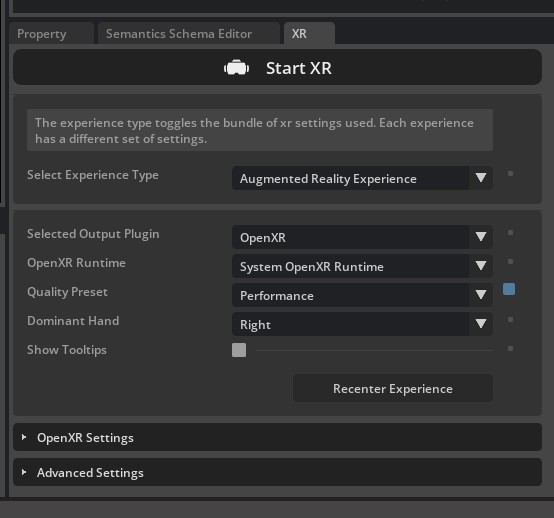
Click Start XR.
You should see “Waiting for connection” displayed in the status bar at the bottom of the viewport. The dual-eye stereo render only becomes active once a headset connects and playback begins on the device.
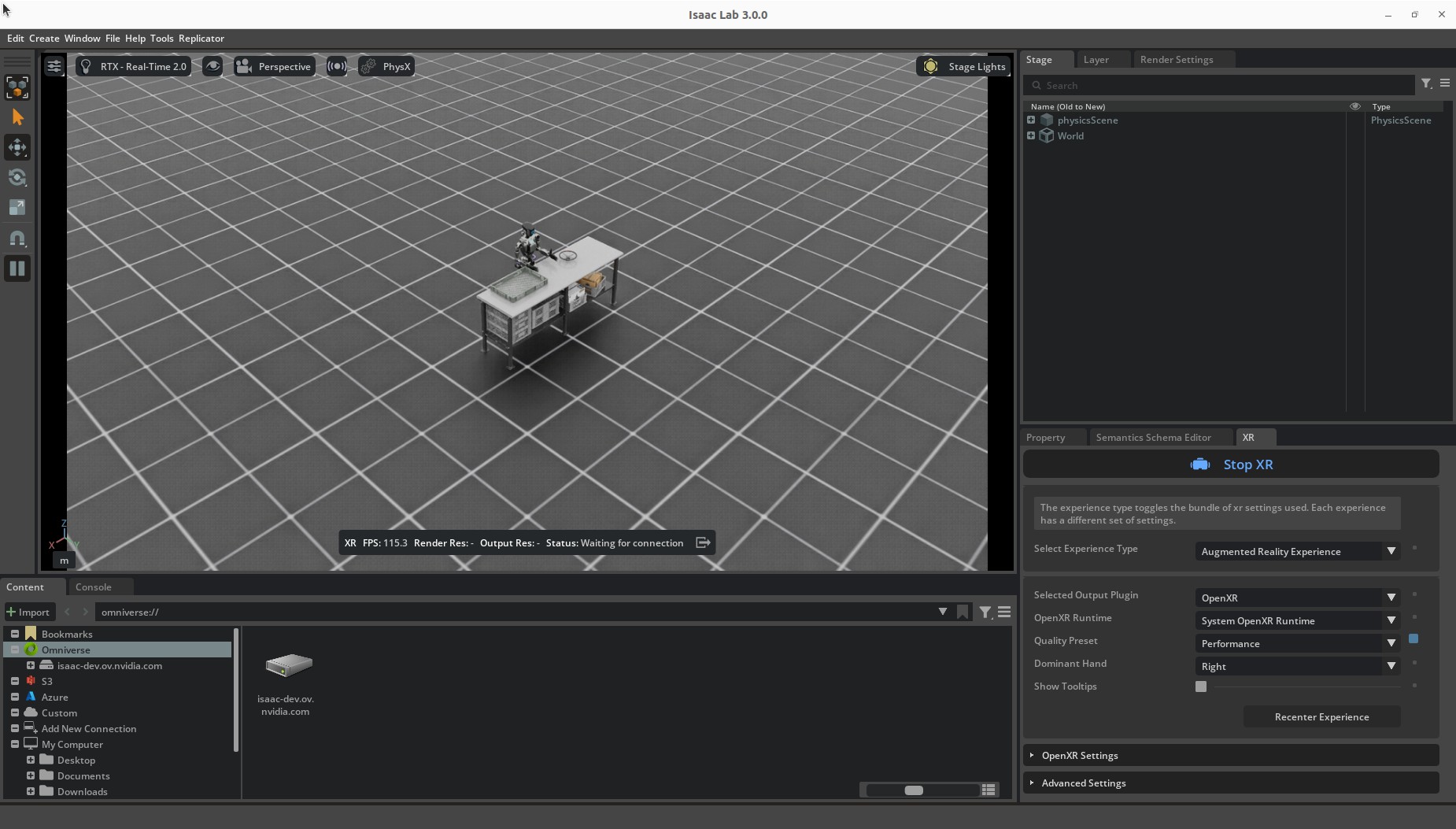
Isaac Lab is now ready to receive connections from a CloudXR client.
Note
Running headless (no local UI). The commands above use --visualizer kit to open the
local Kit viewport, where you click Start XR. On a server or cloud instance without a
display, run headless instead: omit --visualizer (headless is the default). In headless XR the AR session starts automatically –
there is no viewport to click Start XR – so Isaac Lab begins streaming as soon as a
CloudXR client connects. The --headless flag was removed in Isaac Lab 3.0; HEADLESS=1
in the environment also forces headless.
Note
ERROR_STREAMSDK_PORT_UNAVAILABLE / port 49100 already in use. The CloudXR runtime
binds TCP port 49100 for WebRTC signaling. If a previous CloudXR runtime instance is still
running, Server::create fails with this error. Identify the process holding the port,
confirm it is safe to stop, then terminate it – try a graceful kill before escalating
to kill -9:
ss -tlnp | grep 49100  # or: lsof -i :49100
kill $(lsof -ti tcp:49100)       # SIGTERM first
kill -9 $(lsof -ti tcp:49100)    # only if it is still running
Alternatively, set a different port with the NV_CXR_SERVER_PORT environment variable.
Connect an XR Device#
Isaac Capture supports several XR headsets. You only need one of the devices below – choose the tab that matches your hardware.
Meta Quest 3 and Pico 4 Ultra connect to Isaac Lab via the
CloudXR.js
WebXR client. The built-in environments default to the cloudxrjs-cloudxr.env profile
(auto-webrtc), which is the correct setting for these devices.
Note
Pico 4 Ultra requires Pico OS 15.4.4U or later and must use HTTPS mode.
Launch the teleop script as shown in Run Isaac Lab with CloudXR. The CloudXR runtime and WSS proxy start automatically.
Open the browser on your headset and navigate to the hosted CloudXR.js client: https://nvidia.github.io/IsaacCapture/client/release-1.4.x/.
Note
The web client URL is versioned. The
release-1.4.xpath corresponds to theisaacteleopversion pinned by Isaac Lab (isaacteleop~=1.4.145in theteleopextra of the rootpyproject.toml). When Isaac Lab updates its teleoperation dependency, update this link to the matching client release.Tip
For rapid development, you can test the CloudXR.js client on a desktop browser before deploying to headsets.
Enter the IP address of your Isaac Lab host machine in the Server IP field.
Because the WSS proxy uses a self-signed certificate, you must accept it before connecting. Click the Click https://<ip>:48322/ to accept cert link that appears on the page.
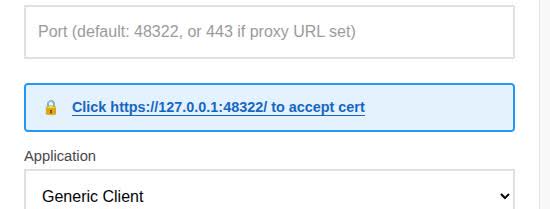
A new tab opens with a “Your connection is not private” warning. Click Advanced, then click Proceed to <ip> (unsafe).
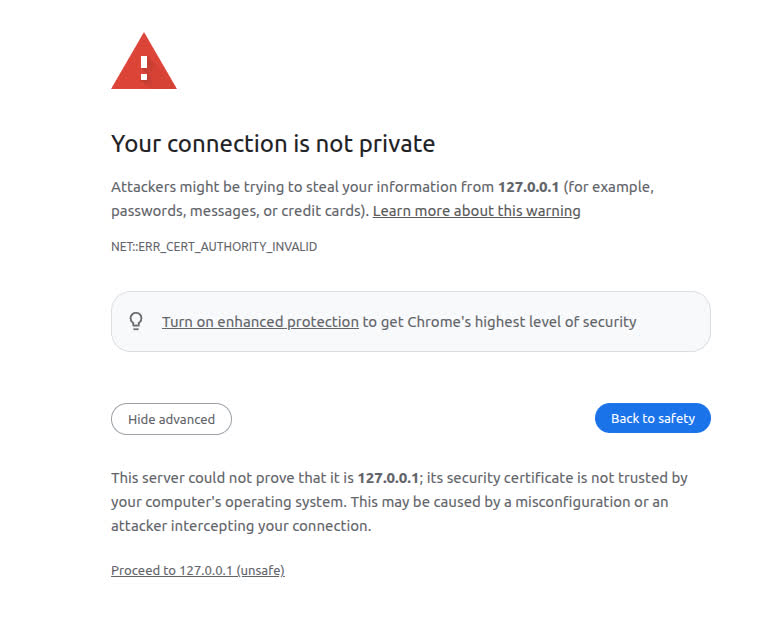
The browser will show a “Certificate Accepted” page confirming the certificate has been accepted. Close this tab and return to the CloudXR.js client page.

Click Connect to begin teleoperation.
For advanced configuration, troubleshooting, and additional details, see the CloudXR.js User Guide.
Apple Vision Pro connects to Isaac Lab via the native Isaac XR Teleop Sample Client app.
Important
Apple Vision Pro requires the auto-native device profile. Pass the avp
shorthand when launching the teleop script:
uv run --extra teleop,isaacsim isaaclab teleop run \
    --task IsaacContrib-PickPlace-GR1T2-WaistEnabled-Abs \
    --visualizer kit --xr \
    --cloudxr_env avp
See CloudXR Environment Profiles for details on the shipped profiles.
Build and Install the Client App
Requirements:
Apple Vision Pro with visionOS 26, Apple M3 Pro chip (11-core CPU), 16 GB unified memory
Apple Silicon Mac with macOS Sequoia 15.6+ and Xcode 26.0
On your Mac:
Clone the Isaac XR Teleop Sample Client repository:
git clone git@github.com:isaac-sim/isaac-xr-teleop-sample-client-apple.git
Check out the version that matches your Isaac Lab version:
Isaac Lab Version
Client App Version
3.0
v3.0.0
2.3
v2.3.0
git checkout <client_app_version>
Follow the README in the repository to build and install the app on your Apple Vision Pro.
Teleoperate with Apple Vision Pro
Tip
Before wearing the headset, verify connectivity from your Mac:
nc -vz <isaac-lab-ip> 48010
Expected output: Connection to <ip> port 48010 [tcp/*] succeeded!
On your Isaac Lab workstation, ensure Isaac Lab and CloudXR are running as described in Run Isaac Lab with CloudXR.
On your Apple Vision Pro:
Open the Isaac XR Teleop Sample Client.
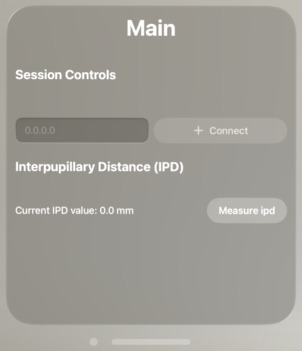
Enter the IP address of your Isaac Lab workstation and click Connect.
Note
The Apple Vision Pro and workstation must be IP-reachable from one another. We recommend a dedicated Wifi 6 router.
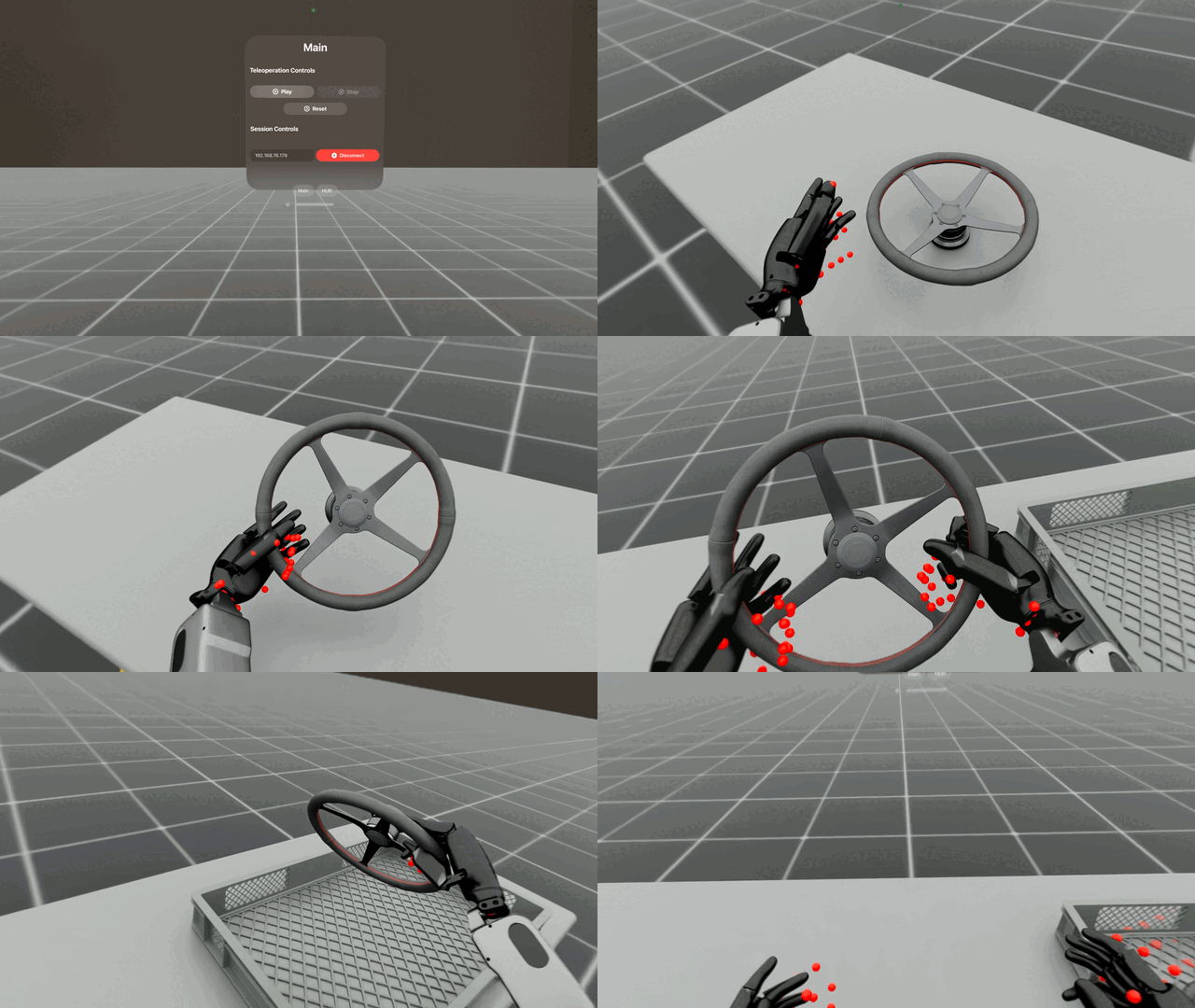
After a brief period you should see the simulation rendered in the headset along with teleoperation controls.
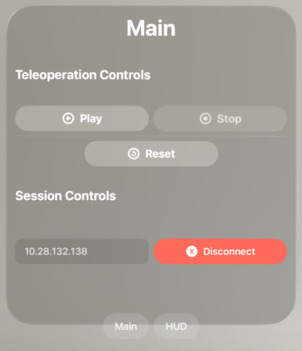
Click Play to begin teleoperating. Use Play, Stop, and Reset to control the session.
Tip
For bimanual tasks, visionOS voice control enables hands-free UI:
Settings > Accessibility > Voice Control > Turn on Voice Control
Enable <item name> under Commands > Basic Navigation
Say “Play”, “Stop”, or “Reset” while the app is connected.
Teleoperate the robot by moving your hands.
Note
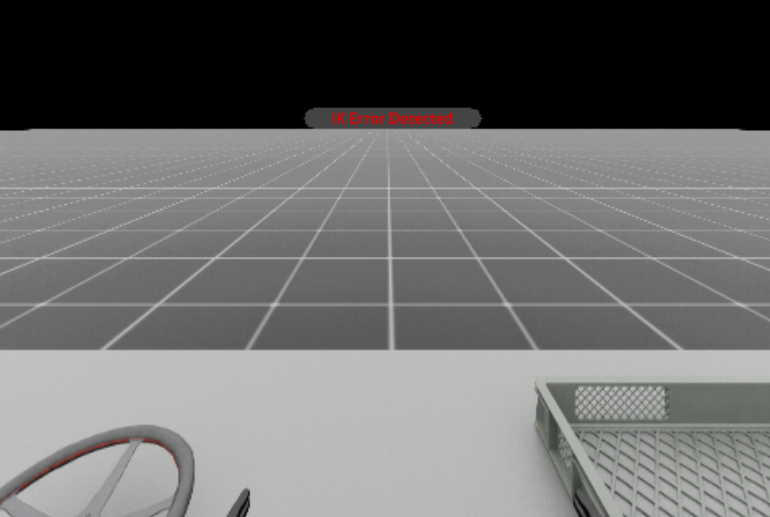
If the IK solver fails, an error message appears in the headset. Click Reset to return the robot to its original pose and continue.
Click Disconnect when finished.
Manus Gloves#
Manus gloves provide high-fidelity finger tracking via the Manus SDK. This is useful when optical
hand tracking from the headset is occluded or when higher-precision finger data is needed. Because
the gloves feed the hand-tracking pipeline, pair them with a hand-tracking task such as
IsaacContrib-PickPlace-GR1T2-WaistEnabled-Abs rather than a controller-driven one. Manus
tracking data flows through the same API as headset-based optical hand tracking in Isaac Capture,
so the same retargeters and pipelines work with both input sources.
Note
Manus glove support has been migrated into Isaac Capture as a native plugin. The previous
isaac-teleop-device-plugins repository and the libsurvive-based Vive tracker integration
are no longer required.
Prerequisites#
Manus gloves with a Manus SDK license, paired with the MANUS Core application so they are connected and calibrated. See the MANUS Getting Started guide for Linux.
The
manus_hand_pluginplugin, built from Isaac Capture source: glove tracking data is streamed by a standalone C++ plugin that you run alongside the sim.Important
manus_hand_pluginis not shipped with Isaac Lab, is not part of theisaacteleoppip package, and is not in any release archive. It exists only after building the Isaac Capture repository from source. Ifinstall/plugins/manus/manus_hand_plugindoes not exist in your Isaac Capture checkout, this step has not been completed.Clone the repository and check out the release branch matching the
isaacteleopversion Isaac Lab is pinned to (isaacteleop~=1.4.145in theteleopextra of the rootpyproject.toml), so the plugin’s wire format matches theisaacteleoppackage Isaac Lab installs:git clone https://github.com/NVIDIA/IsaacCapture.git cd IsaacCapture git checkout release/1.4.x
Note
When Isaac Lab updates its teleoperation dependency, check out the matching
release/<version>.xbranch instead.Grant the host access to the Manus dongle once, on the host machine. Run this outside any container – udev rules are processed by
systemd-udevd, which does not run inside Docker, so installing rules from a container has no effect:cd src/plugins/manus ./install_udev_rules.sh # then unplug and replug the Manus dongle
Then, inside the environment you build in (devcontainer, Isaac ROS container, or bare host), install
clang-format-14– a missingclang-format-14is the most common cause of a failed build, because the rootCMakeLists.txtenforces the format check by default on Linux andinstall_manus.shdoes not install it for you:sudo apt-get update sudo apt-get install -y clang-format-14
Then download the Manus SDK and build and install the plugin:
cd /path/to/IsaacCapture/src/plugins/manus ./install_manus.sh
The script installs the remaining required system packages, downloads the Manus SDK, and builds and installs the plugin and its diagnostic CLI tool. The plugin is installed to
<IsaacCapture>/install/plugins/manus/manus_hand_plugin. Every later command in this section runs from the Isaac Capture checkout root; substitute your own path for/path/to/IsaacCapture.Verify the build and that the gloves are tracking with the diagnostic CLI tool, which opens a MANUS Data Visualizer window showing the hand skeleton. Only one process can hold the Manus SDK connection at a time, so stop the CLI tool before starting the plugin:
cd /path/to/IsaacCapture ./install/bin/manus_hand_tracker_printer
See the Manus plugin documentation for manual installation without
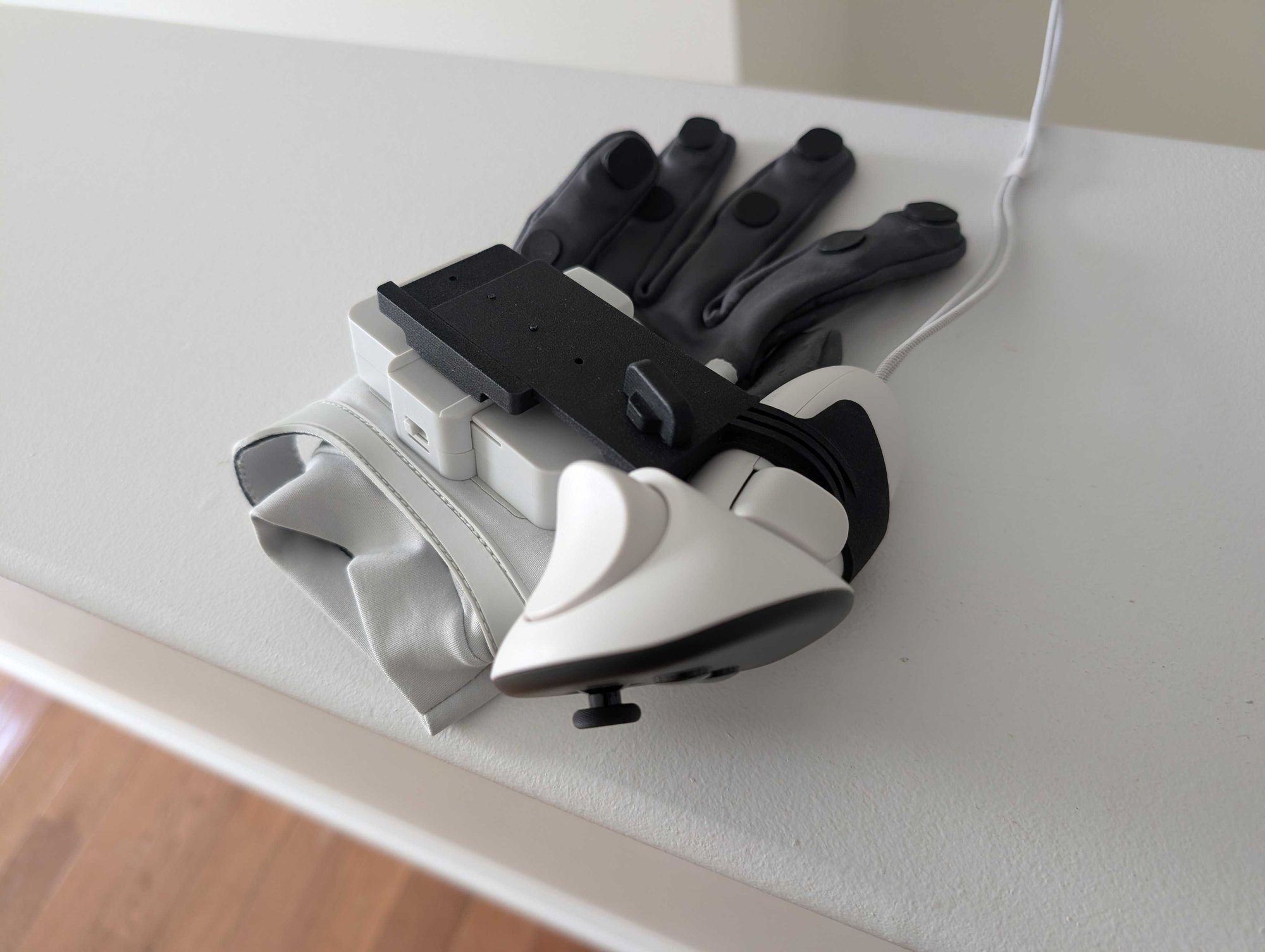
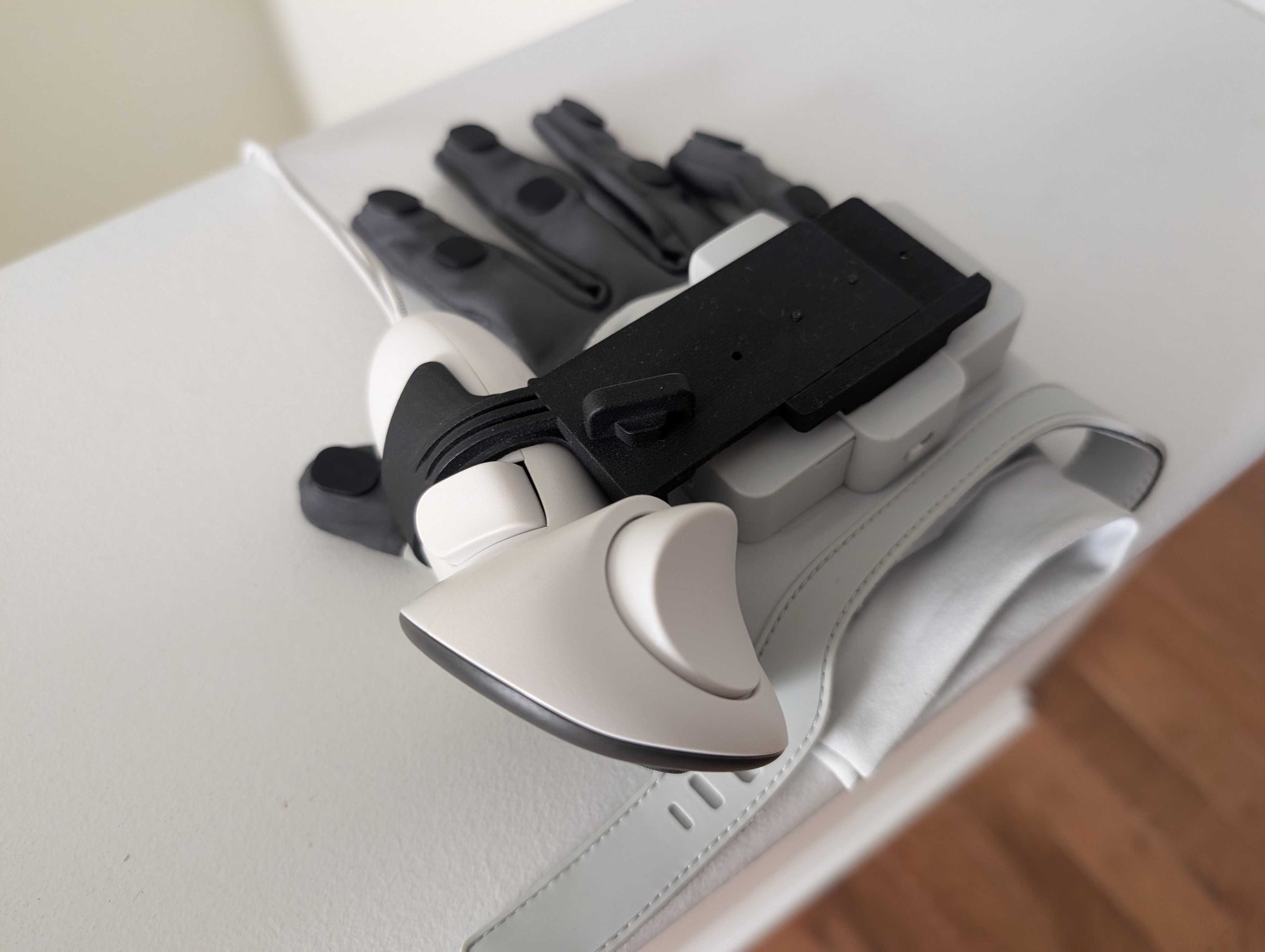
install_manus.sh, the full data-path reference (skeleton injection, flex-sensor tensors, haptics), and troubleshooting.A Meta Quest 3 or Pico 4 Ultra controller per hand, required for wrist positioning. Each MANUS glove has a Universal Mount on the back of the wrist strap; clip the controller into it so the controller’s grip pose drives wrist placement while the glove tracks the fingers. See Wrist Positioning – Controllers vs Optical Hand Tracking in the Manus plugin documentation for how the plugin selects between controller and optical wrist tracking.
Run the simulation#
Launch a teleoperation session paired with a hand-tracking task, as shown in Run Isaac Lab with CloudXR:
uv run --extra teleop,isaacsim isaaclab teleop run \
--task IsaacContrib-PickPlace-GR1T2-WaistEnabled-Abs \
--visualizer kit --xr
Important
Manus gloves and other external push-device peripherals require
NV_CXR_ENABLE_PUSH_DEVICES=1. The shipped .env profiles set this to 0
(optimised for headset optical hand tracking). Create a custom .env file with the value set
to 1 and pass it via --cloudxr_env instead of the plain command above:
# Copy a shipped profile and enable push devices
cp $(uv run --extra teleop,isaacsim python -c \
"from isaaclab_teleop import CLOUDXR_JS_ENV; print(CLOUDXR_JS_ENV)") ~/manus.env
sed -i 's/NV_CXR_ENABLE_PUSH_DEVICES=0/NV_CXR_ENABLE_PUSH_DEVICES=1/' ~/manus.env
uv run --extra teleop,isaacsim isaaclab teleop run \
--task IsaacContrib-PickPlace-GR1T2-WaistEnabled-Abs \
--visualizer kit --xr \
--cloudxr_env ~/manus.env
See CloudXR Environment Profiles for full details on customising profiles.
Wait for “Waiting for connection” in the viewport status bar (or, running headless, for the CloudXR runtime to finish starting) before launching the plugin – see Run Isaac Lab with CloudXR.
Start the plugin#
Isaac Lab does not spawn the plugin for you. Once the sim is up and CloudXR is waiting for a connection, in a separate terminal, source the environment file the runtime writes on startup (this points the OpenXR loader at CloudXR) and start the plugin:
cd /path/to/IsaacCapture
source ~/.cloudxr/run/cloudxr.env
./install/plugins/manus/manus_hand_plugin
By default the plugin enables human hand injection, flex-sensor push, and haptic read. Restrict
datasets with --datasets= (comma-separated) – see the Manus plugin documentation for
details on each data path:
./install/plugins/manus/manus_hand_plugin --datasets=human,sensors,haptic
./install/plugins/manus/manus_hand_plugin --datasets=human # skeleton only
Start teleoperation#
Put on the Manus gloves and headset.
Connect the headset to Isaac Lab: for Meta Quest 3 / Pico 4 Ultra, follow the connection steps above; for Apple Vision Pro, follow the Apple Vision Pro steps. No additional pairing step is required for the gloves once the headset is connected – Manus tracking data replaces the headset’s own hand tracking on the same OpenXR path.
Send the start command from the headset (Meta Quest 3 / Pico 4 Ultra: the CloudXR.js Connect button; Apple Vision Pro: the Play button in the Isaac XR Teleop Sample Client).
Move your hands and the simulated follower will mirror the glove-tracked finger joints in real time.
Haptikos Exoskeletons with Quest#
The Haptikos plugin combines controller wrist poses with exoskeleton finger tracking from the Haptikos Core App and pushes hand joints into the OpenXR runtime. Isaac Lab receives them through Isaac Capture’s standard hand-tracking input, so no Haptikos-specific Isaac Lab device is needed. The plugin supports Linux and has been tested with Meta Quest headsets; other headsets with controllers may also work.
Build the plugin#
The Haptikos plugin is built from Isaac Capture source; it is not included in Isaac Lab’s
teleop extra. Check out the release branch matching Isaac Lab’s isaacteleop pin (currently
1.4.x), obtain the Haptikos Robotics API,
and copy its HaptikosCpp_API_Shared directory into src/plugins/haptikos. The C++ API is
required to build the tracking plugin, even if you do not use haptic feedback. Follow the
plugin’s setup instructions
for Haptikos account and licensing requirements.
git clone https://github.com/NVIDIA/IsaacCapture.git
cd IsaacCapture
git checkout release/1.4.x
# Copy HaptikosCpp_API_Shared to src/plugins/haptikos before building.
cmake -S . -B build -DENABLE_CLANG_FORMAT_CHECK=OFF
cmake --build build --target haptikos_hands_plugin --parallel 4
Run Isaac Lab and the plugin#
Attach a controller to each exoskeleton using the included mount. Calibrate the exoskeleton forward direction against the headset, then keep the Haptikos Core App, exoskeletons, and controllers active. Use the hand-tracking task below.
Haptikos uses an external OpenXR push device. The shipped CloudXR profiles disable push devices, so enable them in a custom profile before launching Isaac Lab:
cp $(uv run --extra teleop,isaacsim python -c \
"from isaaclab_teleop import CLOUDXR_JS_ENV; print(CLOUDXR_JS_ENV)") ~/haptikos.env
sed -i 's/NV_CXR_ENABLE_PUSH_DEVICES=0/NV_CXR_ENABLE_PUSH_DEVICES=1/' ~/haptikos.env
uv run --extra teleop,isaacsim isaaclab teleop run \
    --task IsaacContrib-PickPlace-GR1T2-WaistEnabled-Abs \
--visualizer kit --xr --cloudxr_env ~/haptikos.env
Once CloudXR is waiting for a connection, open a separate terminal and start the plugin with the runtime environment created by Isaac Lab:
cd /path/to/IsaacCapture
source ~/.cloudxr/run/cloudxr.env
./build/src/plugins/haptikos/haptikos_hands_plugin
Connect the Quest using the Quest/Pico connection steps, then start teleoperation from the headset.
See CloudXR Environment Profiles for more on custom profiles.
Run with Docker#
Teleoperation runs in a single container. Build the image yourself and run a single container. Do not use Docker Compose, which is a multi-container setup as we had in Isaac Lab 2.x. All components run inside one container with Isaac Lab in this release.
The CloudXR runtime auto-launches when a teleop script is started, so no separate runtime command is needed.
Attention
Recent Isaac Lab Docker images (3.0.0-beta2 and later) run as a non-root user
(uid/gid 1000). Persistent named volumes or host directories that were created by an
earlier root-based image are owned by root and are not writable by the runtime
user. The XR teleop workflow trips on this first, because it writes the extension
registry cache under the runtime home. The failure looks like:
[Error] [carb.scripting-python.plugin] PermissionError: [Errno 13] Permission denied: '/root/.local/share/ov/data/exts'
followed by a cascade of extension-registry errors:
[Error] [omni.ext.plugin] Syncing with extension registry unavailable.
To fix it, make the persistent storage writable by uid/gid 1000 before relaunching:
Docker Compose: recreate the named volumes, e.g.
docker compose --file docker-compose.yaml --profile base --env-file .env.base down --volumes
See Running Isaac Lab in Docker for details. To preserve cached data instead of deleting it,
chownthe volume:docker run --rm -v docker_isaac-data:/data alpine chown -R 1000:1000 /data.Single container with bind mounts: pre-create the host directories and
sudo chown -R 1000:1000them before launching, so the non-root user can write to them.
Because the Isaac Lab container runs with network_mode: host, the container’s ports are
exposed directly on the host network stack. The host firewall therefore governs whether XR
devices can reach Isaac Lab. Apply the same ufw rules from Install Isaac Capture
on the host machine before starting the container:
sudo ufw allow 49100/tcp   # Signaling (WebRTC)
sudo ufw allow 47998/udp   # Media stream
sudo ufw allow 48322/tcp   # WSS proxy — required for cert acceptance and streaming
sudo ufw allow 48010/tcp   # Standard mode signaling
sudo ufw allow 48322/tcp   # Secure mode signaling
sudo ufw allow 47998/udp
sudo ufw allow 48005/udp
sudo ufw allow 48008/udp
sudo ufw allow 48012/udp
sudo ufw allow 47999/udp
sudo ufw allow 48000/udp
sudo ufw allow 48002/udp
Note
If port 48322 is not open, the headset browser will show “This site can’t be reached” when navigating to the certificate-acceptance page — the TCP connection fails before any certificate exchange occurs.
Run the teleop script (e.g. record_demos.py to record demonstrations):
uv run --extra teleop,isaacsim isaaclab teleop record \
  --task IsaacContrib-PickPlace-Locomanipulation-G1-Abs \
  --num_demos 5 \
  --dataset_file ./datasets/dataset.hdf5 \
  --xr --visualizer kit
Then in the Isaac Sim UI, set the XR panel to System OpenXR Runtime and click Start XR.
For a fully headless experience, omit --visualizer kit and the XR teleop session will run automatically.