


Interacting with a deformable object#
While deformable objects sometimes refer to a broader class of objects, such as cloths, fluids and soft bodies,
Isaac Lab represents deformable objects as either surface or volume deformables. Unlike rigid objects, soft bodies can
deform under external forces and collisions. In this tutorial, we focus on volume deformable bodies. For an example of
surface deformables (cloth), see the deformable demo at scripts/demos/deformables.py.
The deformable object API and schema define/modify functions are shared across backends, while deformable
property and material configuration classes are backend-specific. PhysX simulates soft bodies using the Finite
Element Method (FEM); the Newton experimental backend uses the core VBD solver from
isaaclab_newton.physics with the deformable object integration from
isaaclab_contrib.deformable.
The volume deformable comprises of two tetrahedral meshes – a simulation mesh and a collision mesh. The simulation
mesh is used to simulate the deformations of the soft body, while the collision mesh is used to detect collisions
with other objects in the scene. For PhysX-specific details, please check the PhysX documentation.
This tutorial shows how to interact with a deformable object in the simulation. We will spawn a set of soft cubes and see how to set their nodal positions and velocities, along with apply kinematic commands to the mesh nodes to move the soft body.
Note
This tutorial automatically tetrahedralizes volume deformables, and its default
visualizer is Kit. Run it with the isaacsim and tetrahedralization extras:
uv run --extra isaacsim --extra tetrahedralization python scripts/tutorials/01_assets/run_deformable_object.py --visualizer kit
With the legacy installer, install the optional dependencies first:
./isaaclab.sh -i tetrahedralization
The Code#
The tutorial corresponds to the run_deformable_object.py script in the scripts/tutorials/01_assets directory.
Code for run_deformable_object.py
  1# Copyright (c) 2022-2026, The Isaac Lab Project Developers (https://github.com/isaac-sim/IsaacLab/blob/main/CONTRIBUTORS.md).
  2# All rights reserved.
  3#
  4# SPDX-License-Identifier: BSD-3-Clause
  5
  6"""
  7This script demonstrates how to work with the deformable object and interact with it.
  8
  9.. code-block:: bash
 10
 11    # Usage with default PhysX physics and default kit visualizer.
 12    uv run --extra isaacsim --extra tetrahedralization python scripts/tutorials/01_assets/run_deformable_object.py
 13
 14    # Usage with Newton VBD physics and default kit visualizer.
 15    uv run --extra isaacsim --extra tetrahedralization python scripts/tutorials/01_assets/run_deformable_object.py \
 16        --backend newton_vbd
 17
 18    # Usage with OvPhysX physics without a visualizer.
 19    uv run --extra ovphysx --extra tetrahedralization python scripts/tutorials/01_assets/run_deformable_object.py \
 20        --backend ovphysx
 21
 22"""
 23
 24"""Parse CLI first so we can decide whether to launch Isaac Sim Kit."""
 25
 26import argparse
 27from typing import TYPE_CHECKING
 28
 29from isaaclab.app import add_launcher_args, launch_simulation
 30
 31# add argparse arguments
 32parser = argparse.ArgumentParser(description="Tutorial on interacting with a deformable object.")
 33parser.add_argument(
 34    "--backend", type=str, default="physx", choices=["physx", "newton_vbd", "ovphysx"], help="Physics backend."
 35)
 36# append simulation launcher CLI arguments
 37add_launcher_args(parser)
 38# Kit cannot be combined with OvPhysX, so use no visualizer by default for that backend
 39backend_args, _ = parser.parse_known_args()
 40parser.set_defaults(visualizer=None if backend_args.backend == "ovphysx" else ["kit"])
 41# parse the arguments
 42args_cli = parser.parse_args()
 43args_cli.physics = args_cli.backend
 44
 45"""Rest everything follows."""
 46
 47import torch
 48
 49import isaaclab.sim as sim_utils
 50import isaaclab.utils.math as math_utils
 51from isaaclab.physics import PhysicsCfg
 52
 53if TYPE_CHECKING:
 54    from isaaclab.assets import DeformableObject
 55
 56
 57def design_scene():
 58    """Designs the scene."""
 59    from isaaclab.assets import DeformableObject, DeformableObjectCfg
 60
 61    # Ground-plane
 62    cfg = sim_utils.GroundPlaneCfg()
 63    cfg.func("/World/defaultGroundPlane", cfg)
 64    # Lights
 65    cfg = sim_utils.DomeLightCfg(intensity=2000.0, color=(0.8, 0.8, 0.8))
 66    cfg.func("/World/Light", cfg)
 67
 68    # Create a dictionary for the scene entities
 69    scene_entities = {}
 70
 71    # Create separate groups called "env_0", "env_1", ...
 72    # Newton's scene loader requires the "env_\d+" naming convention to
 73    # detect per-environment Xforms and replicate them as separate worlds.
 74    origins = [[0.25, 0.25, 0.0], [-0.25, 0.25, 0.0], [0.25, -0.25, 0.0], [-0.25, -0.25, 0.0]]
 75    for i, origin in enumerate(origins):
 76        sim_utils.create_prim(f"/World/env_{i}", "Xform", translation=origin)
 77
 78    youngs_modulus = 1e5
 79    poissons_ratio = 0.4
 80    density = 500.0
 81    if args_cli.backend == "newton_vbd":
 82        from isaaclab_newton.sim.schemas import NewtonDeformableBodyPropertiesCfg
 83        from isaaclab_newton.sim.spawners.materials import NewtonDeformableBodyMaterialCfg
 84
 85        deformable_props = NewtonDeformableBodyPropertiesCfg()
 86        # Newton's VBD path skips the simulation mesh collider, so collision offsets do not apply
 87        collision_props = None
 88        physics_material = NewtonDeformableBodyMaterialCfg(
 89            k_mu=youngs_modulus / (2.0 * (1.0 + poissons_ratio)),
 90            k_lambda=youngs_modulus * poissons_ratio / ((1.0 + poissons_ratio) * (1.0 - 2.0 * poissons_ratio)),
 91            density=density,
 92        )
 93    else:
 94        from isaaclab_physx.sim.schemas import PhysxCollisionCfg, PhysxDeformableBodyPropertiesCfg
 95        from isaaclab_physx.sim.spawners.materials import PhysxDeformableBodyMaterialCfg
 96
 97        deformable_props = PhysxDeformableBodyPropertiesCfg()
 98        collision_props = [PhysxCollisionCfg(rest_offset=0.0, contact_offset=0.001)]
 99        physics_material = PhysxDeformableBodyMaterialCfg(
100            poissons_ratio=poissons_ratio, youngs_modulus=youngs_modulus, density=density
101        )
102
103    # 3D Deformable Object
104    cfg = DeformableObjectCfg(
105        prim_path="/World/env_.*/Cube",
106        spawn=sim_utils.MeshCuboidCfg(
107            size=(0.2, 0.2, 0.2),
108            deformable_props=deformable_props,
109            collision_props=collision_props,
110            visual_material=sim_utils.PreviewSurfaceCfg(diffuse_color=(0.5, 0.1, 0.0)),
111            physics_material=physics_material,
112        ),
113        init_state=DeformableObjectCfg.InitialStateCfg(pos=(0.0, 0.0, 1.0)),
114        debug_vis=True,
115    )
116
117    cube_object = DeformableObject(cfg=cfg)
118    scene_entities["cube_object"] = cube_object
119
120    # return the scene information
121    return scene_entities, origins
122
123
124def run_simulator(sim: sim_utils.SimulationContext, entities: dict, origins: torch.Tensor):
125    """Runs the simulation loop."""
126    # Extract scene entities
127    # note: we only do this here for readability. In general, it is better to access the entities directly from
128    #   the dictionary. This dictionary is replaced by the InteractiveScene class in the next tutorial.
129    cube_object: DeformableObject = entities["cube_object"]
130
131    # Define simulation stepping
132    sim_dt = sim.get_physics_dt()
133    sim_time = 0.0
134    count = 0
135
136    # Nodal kinematic targets of the deformable bodies
137    nodal_kinematic_target = cube_object.data.nodal_kinematic_target.torch.clone()
138
139    # Simulate physics
140    while sim.is_headless_or_exist_active_visualizer():
141        # reset at start and after 3 seconds
142        if count % int(3.0 / sim_dt) == 0:
143            # reset counters
144            count = 0
145
146            # reset the nodal state of the object
147            nodal_state = cube_object.data.default_nodal_state_w.torch.clone()
148            # apply random pose to the object
149            pos_w = torch.rand(cube_object.num_instances, 3, device=sim.device) * 0.1 + origins
150            quat_w = math_utils.random_orientation(cube_object.num_instances, device=sim.device)
151            nodal_state[..., :3] = cube_object.transform_nodal_pos(nodal_state[..., :3], pos_w, quat_w)
152
153            # write nodal state to simulation
154            cube_object.write_nodal_state_to_sim_index(nodal_state)
155
156            # Write the nodal state to the kinematic target and free all vertices
157            nodal_kinematic_target[..., :3] = nodal_state[..., :3]
158            nodal_kinematic_target[..., 3] = 1.0
159            cube_object.write_nodal_kinematic_target_to_sim_index(nodal_kinematic_target)
160
161            # reset buffers
162            cube_object.reset()
163
164            print("----------------------------------------")
165            print("[INFO]: Resetting object state...")
166
167        # update the kinematic target for cubes at index 0 and 3
168        kinematic_cubes = [0, 3]
169        # we slightly move the cube in the z-direction by picking the vertex at index 0
170        nodal_kinematic_target[kinematic_cubes, 0, 2] += 0.2 * sim_dt
171        # set vertex at index 0 to be kinematically constrained
172        # 0: constrained, 1: free
173        nodal_kinematic_target[kinematic_cubes, 0, 3] = 0.0
174        # write kinematic target to simulation
175        cube_object.write_nodal_kinematic_target_to_sim_index(nodal_kinematic_target)
176
177        # write internal data to simulation
178        cube_object.write_data_to_sim()
179        # perform step
180        sim.step()
181        # update sim-time
182        sim_time += sim_dt
183        count += 1
184        # update buffers
185        cube_object.update(sim_dt)
186
187        # print the root positions every second
188        if count % int(1.0 / sim_dt) == 0:
189            print(f"Time {sim_time:.2f}s: \tRoot position (in world): {cube_object.data.root_pos_w.torch[:, :3]}")
190
191
192def main():
193    """Main function."""
194    with launch_simulation(cfg=PhysicsCfg(), launcher_args=args_cli) as physics_cfg:
195        if args_cli.backend == "newton_vbd":
196            physics_cfg.solver_cfg.iterations = 10
197            physics_cfg.num_substeps = 4
198        sim_cfg = sim_utils.SimulationCfg(dt=0.01, device=args_cli.device, physics=physics_cfg)
199        sim = sim_utils.SimulationContext(sim_cfg)
200        # Set main camera
201        sim.set_camera_view(eye=[2.0, 2.0, 2.0], target=[0.0, 0.0, 0.75])
202        # Design scene
203        scene_entities, scene_origins = design_scene()
204        scene_origins = torch.tensor(scene_origins, device=sim.device)
205        # Play the simulator
206        sim.reset()
207        # Now we are ready!
208        print("[INFO]: Setup complete...")
209        # Run the simulator
210        run_simulator(sim, scene_entities, scene_origins)
211        print("[INFO]: Simulation complete...")
212
213
214if __name__ == "__main__":
215    # run the main function
216    main()
The Code Explained#
Designing the scene#
Similar to the Interacting with a rigid object tutorial, we populate the scene with a ground plane
and a light source. In addition, we add a deformable object to the scene using the assets.DeformableObject
class. This class is responsible for spawning the prims at the input path and initializes their corresponding
deformable body physics handles.
In this tutorial, we create a cubical soft object using the spawn configuration similar to the deformable cube
in the Spawn Objects tutorial. The only difference is that now we wrap
the spawning configuration into the assets.DeformableObjectCfg class. This class contains information about
the asset’s spawning strategy and default initial state. When this class is passed to
the assets.DeformableObject class, it spawns the object and initializes the corresponding physics handles
when the simulation is played.
Note
Deformable objects require a mesh object to be spawned with backend-specific deformable body physics
properties and a matching deformable physics material.
Use --backend physx for the PhysX implementation or --backend newton_vbd for the experimental Newton
implementation.
As seen in the rigid body tutorial, we can spawn the deformable object into the scene in a similar fashion by creating
an instance of the assets.DeformableObject class by passing the configuration object to its constructor.
    # Create separate groups called "env_0", "env_1", ...
    # Newton's scene loader requires the "env_\d+" naming convention to
    # detect per-environment Xforms and replicate them as separate worlds.
    origins = [[0.25, 0.25, 0.0], [-0.25, 0.25, 0.0], [0.25, -0.25, 0.0], [-0.25, -0.25, 0.0]]
    for i, origin in enumerate(origins):
        sim_utils.create_prim(f"/World/env_{i}", "Xform", translation=origin)

    youngs_modulus = 1e5
    poissons_ratio = 0.4
    density = 500.0
    if args_cli.backend == "newton_vbd":
        from isaaclab_newton.sim.schemas import NewtonDeformableBodyPropertiesCfg
        from isaaclab_newton.sim.spawners.materials import NewtonDeformableBodyMaterialCfg

        deformable_props = NewtonDeformableBodyPropertiesCfg()
        # Newton's VBD path skips the simulation mesh collider, so collision offsets do not apply
        collision_props = None
        physics_material = NewtonDeformableBodyMaterialCfg(
            k_mu=youngs_modulus / (2.0 * (1.0 + poissons_ratio)),
            k_lambda=youngs_modulus * poissons_ratio / ((1.0 + poissons_ratio) * (1.0 - 2.0 * poissons_ratio)),
            density=density,
        )
    else:
        from isaaclab_physx.sim.schemas import PhysxCollisionCfg, PhysxDeformableBodyPropertiesCfg
        from isaaclab_physx.sim.spawners.materials import PhysxDeformableBodyMaterialCfg

        deformable_props = PhysxDeformableBodyPropertiesCfg()
        collision_props = [PhysxCollisionCfg(rest_offset=0.0, contact_offset=0.001)]
        physics_material = PhysxDeformableBodyMaterialCfg(
            poissons_ratio=poissons_ratio, youngs_modulus=youngs_modulus, density=density
        )

    # 3D Deformable Object
    cfg = DeformableObjectCfg(
        prim_path="/World/env_.*/Cube",
        spawn=sim_utils.MeshCuboidCfg(
            size=(0.2, 0.2, 0.2),
            deformable_props=deformable_props,
            collision_props=collision_props,
            visual_material=sim_utils.PreviewSurfaceCfg(diffuse_color=(0.5, 0.1, 0.0)),
            physics_material=physics_material,
        ),
        init_state=DeformableObjectCfg.InitialStateCfg(pos=(0.0, 0.0, 1.0)),
        debug_vis=True,
    )

    cube_object = DeformableObject(cfg=cfg)
Running the simulation loop#
Continuing from the rigid body tutorial, we reset the simulation at regular intervals, apply kinematic commands to the deformable body, step the simulation, and update the deformable object’s internal buffers.
Resetting the simulation state#
Unlike rigid bodies and articulations, deformable objects have a different state representation. The state of a
deformable object is defined by the nodal positions and velocities of the mesh. The nodal positions and velocities
are defined in the simulation world frame and are stored in the assets.DeformableObject.data attribute.
We use the assets.DeformableObject.data.default_nodal_state_w attribute to get the default nodal state of the
spawned object prims. This default state can be configured from the assets.DeformableObjectCfg.init_state
attribute, which we left as identity in this tutorial.
Attention
The initial state in the configuration assets.DeformableObjectCfg specifies the pose
of the deformable object at the time of spawning. Based on this initial state, the default nodal state is
obtained when the simulation is played for the first time.
We apply transformations to the nodal positions to randomize the initial state of the deformable object.
            # reset the nodal state of the object
            nodal_state = cube_object.data.default_nodal_state_w.torch.clone()
            # apply random pose to the object
            pos_w = torch.rand(cube_object.num_instances, 3, device=sim.device) * 0.1 + origins
            quat_w = math_utils.random_orientation(cube_object.num_instances, device=sim.device)
            nodal_state[..., :3] = cube_object.transform_nodal_pos(nodal_state[..., :3], pos_w, quat_w)
To reset the deformable object, we first set the nodal state by calling the assets.DeformableObject.write_nodal_state_to_sim()
method. This method writes the nodal state of the deformable object prim into the simulation buffer.
Additionally, we free all the kinematic targets set for the nodes in the previous simulation step by calling
the assets.DeformableObject.write_nodal_kinematic_target_to_sim() method. We explain the
kinematic targets in the next section.
Finally, we call the assets.DeformableObject.reset() method to reset any internal buffers and caches.
            # write nodal state to simulation
            cube_object.write_nodal_state_to_sim_index(nodal_state)

            # Write the nodal state to the kinematic target and free all vertices
            nodal_kinematic_target[..., :3] = nodal_state[..., :3]
            nodal_kinematic_target[..., 3] = 1.0
            cube_object.write_nodal_kinematic_target_to_sim_index(nodal_kinematic_target)

            # reset buffers
            cube_object.reset()
Stepping the simulation#
Deformable bodies support user-driven kinematic control where a user can specify position targets for some of the mesh nodes while the rest of the nodes are simulated by the active deformable solver. This partial kinematic control is useful for applications where the user wants to interact with the deformable object in a controlled manner.
In this tutorial, we apply kinematic commands to two out of the four cubes in the scene. We set the position targets for the node at index 0 (bottom-left corner) to move the cube along the z-axis.
At every step, we increment the kinematic position target for the node by a small value. Additionally,
we set the flag to indicate that the target is a kinematic target for that node in the simulation buffer.
These are set into the simulation buffer by calling the assets.DeformableObject.write_nodal_kinematic_target_to_sim()
method.
        # update the kinematic target for cubes at index 0 and 3
        kinematic_cubes = [0, 3]
        # we slightly move the cube in the z-direction by picking the vertex at index 0
        nodal_kinematic_target[kinematic_cubes, 0, 2] += 0.2 * sim_dt
        # set vertex at index 0 to be kinematically constrained
        # 0: constrained, 1: free
        nodal_kinematic_target[kinematic_cubes, 0, 3] = 0.0
        # write kinematic target to simulation
        cube_object.write_nodal_kinematic_target_to_sim_index(nodal_kinematic_target)
Similar to the rigid object and articulation, we perform the assets.DeformableObject.write_data_to_sim() method
before stepping the simulation. For deformable objects, this method does not apply any external forces to the object.
However, we keep this method for completeness and future extensions.
        # write internal data to simulation
        cube_object.write_data_to_sim()
Updating the state#
After stepping the simulation, we update the internal buffers of the deformable object prims to reflect their new state
inside the assets.DeformableObject.data attribute. This is done using the assets.DeformableObject.update() method.
At a fixed interval, we print the root position of the deformable object to the terminal. As mentioned earlier, there is no concept of a root state for deformable objects. However, we compute the root position as the average position of all the nodes in the mesh.
        # update buffers
        cube_object.update(sim_dt)

        # print the root positions every second
        if count % int(1.0 / sim_dt) == 0:
            print(f"Time {sim_time:.2f}s: \tRoot position (in world): {cube_object.data.root_pos_w.torch[:, :3]}")
The Code Execution#
Now that we have gone through the code, let’s run the script and see the result:
uv run --extra isaacsim --extra tetrahedralization python scripts/tutorials/01_assets/run_deformable_object.py --visualizer kit
./isaaclab.sh -p scripts/tutorials/01_assets/run_deformable_object.py --visualizer kit
To run the same tutorial with the experimental Newton deformable backend:
uv run --extra isaacsim --extra tetrahedralization python scripts/tutorials/01_assets/run_deformable_object.py --backend newton_vbd --visualizer kit
./isaaclab.sh -p scripts/tutorials/01_assets/run_deformable_object.py --backend newton_vbd --visualizer kit
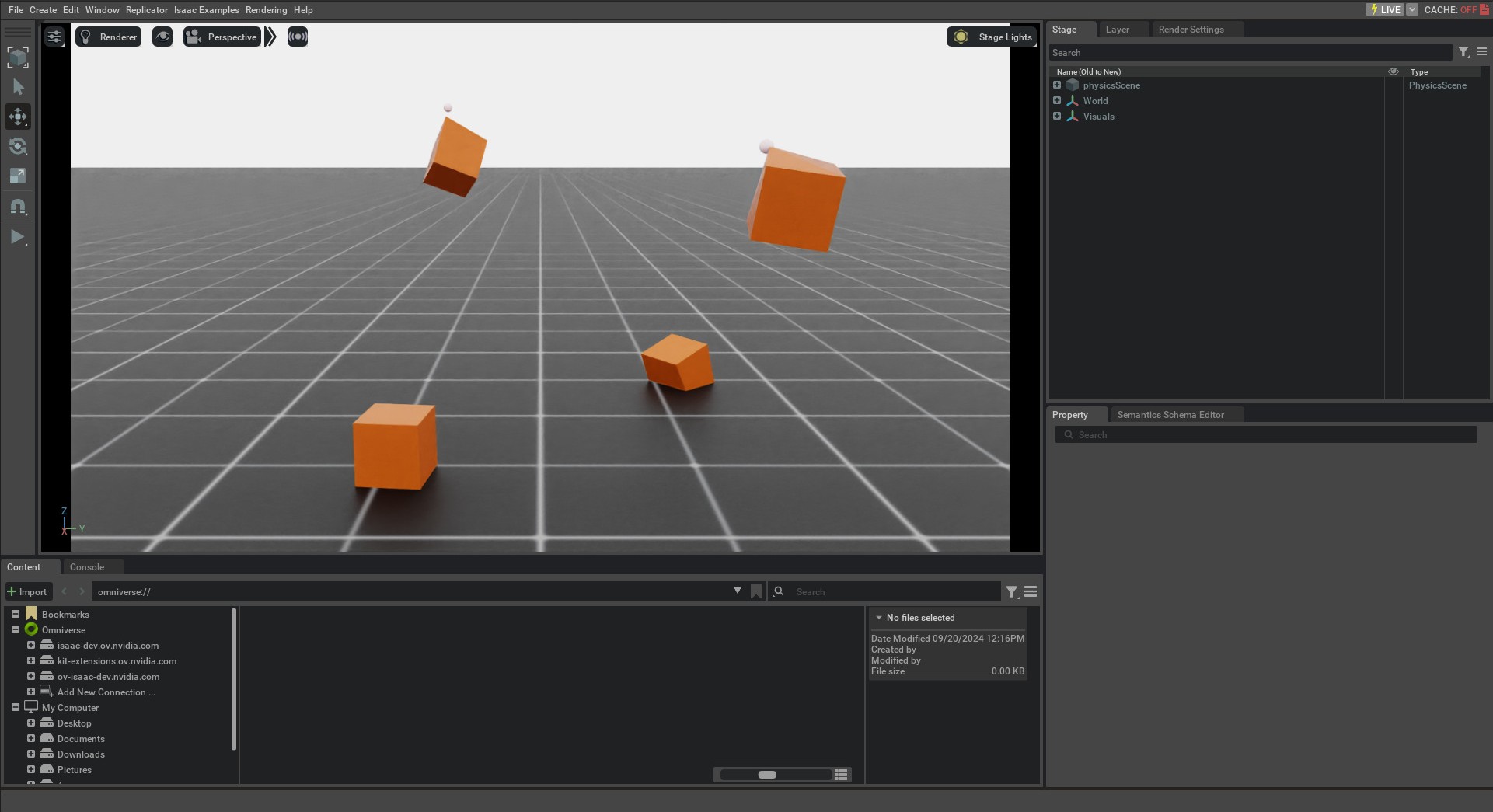
This should open a stage with a ground plane, lights, and several cubes. Two of the four cubes must be dropping
from a height and settling on to the ground. Meanwhile the other two cubes must be moving along the z-axis. You
should see a marker showing the kinematic target position for the nodes at the bottom-left corner of the cubes.
To stop the simulation, you can either close the window, or press Ctrl+C in the terminal
This tutorial showed how to spawn deformable objects and wrap them in a DeformableObject class to initialize their
physics handles which allows setting and obtaining their state. We also saw how to apply kinematic commands to the
deformable object to move the mesh nodes in a controlled manner. An advanced demo of deformable objects, including surface deformables and loading USD assets and applying deformable material on them, can be found in scripts/demos/deformables.py. In the next tutorial, we will see how to create
a scene using the InteractiveScene class.