
Importing a New Asset#
NVIDIA Omniverse relies on the Universal Scene Description (USD) file format to import and export assets. USD is an open source file format developed by Pixar Animation Studios. It is a scene description format optimized for large-scale, complex data sets. While this format is widely used in the film and animation industry, it is less common in the robotics community.
To this end, NVIDIA has developed various importers that allow you to import assets from other file formats into USD. These importers are available through Omniverse Kit workflows, and the URDF/MJCF Python importers can also be used from a standalone pip wheel:
URDF Importer - Import assets from URDF files.
MJCF Importer - Import assets from MJCF files.
Mesh Importer - Import assets from various file formats, including OBJ, FBX, STL, and glTF.
The recommended workflow from NVIDIA is to use the above importers to convert the asset into its USD representation. Once the asset is in USD format, you can use the Omniverse Kit to edit the asset and export it to other file formats. Isaac Sim includes these importers by default. They can also be enabled manually in Omniverse Kit.
Isaac Lab’s URDF and MJCF converter utilities first use the importer APIs from Isaac Sim when the full runtime is installed. In kit-less environments they fall back to the standalone importers described in Standalone URDF/MJCF importers below. The Kit visualizer and GUI import dialogs still require an Omniverse Kit runtime.
An important note to use assets for large-scale simulation is to ensure that they are in instanceable format. This allows the asset to be efficiently loaded into memory and used multiple times in a scene. Otherwise, the asset will be loaded into memory multiple times, which can cause performance issues. For more details on instanceable assets, please check the Isaac Sim documentation.
Standalone URDF/MJCF importers#
The URDF and MJCF converter scripts run without Isaac Sim. The standalone
importers are optional; install them with the isaaclab[importers] command in
Installing the importers extra before running these scripts.
Optionally pass --viz newton_gl (or rerun / viser) to preview the converted asset in a
kit-less Isaac Lab visualizer:
uv run --extra importers isaaclab -p scripts/tools/convert_urdf.py \
  path/to/robot.urdf path/to/output_dir --merge_joints

uv run --extra importers isaaclab -p scripts/tools/convert_mjcf.py \
  path/to/model.xml path/to/output.usd --merge_mesh
If Isaac Sim is installed in the same environment, Isaac Lab uses the Isaac Sim importer extensions first. The standalone wheel is used only when the full Isaac Sim runtime is not available.
Multi-backend assets#
A converted asset can carry shared USD physics and backend-specific attributes. The Isaac Sim 6.1 standalone URDF and MJCF importers produce layered output such as:
robot_name.usda                    interface USD and Physics variant selection
payloads/base.usda                 composed asset
payloads/instances.usda            reusable geometry
payloads/Physics/physics.usda      shared physics and compatible backend attributes
Additional physics layers depend on the source asset and importer version. A layer named
physx.usda or mujoco.usda does not by itself mean that a variant with that name exists.
Inspect the interface USD’s Physics variant set before requesting a backend-specific variant.
physics_variant defaults to physics.
The tested Isaac Sim 6.1 output exposes physics and none; none omits the physics
payload. Isaac Lab selects the requested variant explicitly and raises an error if the
asset has a Physics variant set without that variant. Do not assume that physx
or mujoco is selectable on every converted asset.
run_multi_physics_conversion, enabled by default, asks the importer to convert supported
backend-specific physics attributes. This does not guarantee equivalent solver behavior or
support for every source feature. Validate masses, inertias, collisions and joint control on
the intended physics backend.
With run_asset_transformer=False, the tested converters produce flat output without a
Physics variant set. Isaac Lab leaves that output unchanged rather than selecting a variant.
For an existing layered asset, variants can override an available
selection at spawn time.
Use Choosing shared and backend-specific settings to choose configuration overrides for the selected backend.
Using URDF Importer#
For using the URDF importer in the GUI, please check the documentation at URDF importer. For using the URDF importer from Python scripts, we include a utility tool called convert_urdf.py. This script creates an instance of UrdfConverterCfg which
is then passed to the UrdfConverter class.
Note
The URDF importer was upgraded to version 3.0 in Isaac Sim 6, replacing the previous C++
binding-based API with a Python pipeline (urdf-usd-converter). Assets are now made
instanceable by default — make_instanceable is no longer a configuration option.
See the Migrating To 3.0 for a full list of breaking changes.
The URDF importer has various configuration parameters that can be set to control the behavior of the importer.
The default values for the importer’s configuration parameters are specified in the UrdfConverterCfg class, and they are listed below. We made a few commonly modified settings to be available as command-line arguments when calling the convert_urdf.py, and they are marked with * in the list. For a comprehensive list of the configuration parameters, please check the documentation at URDF importer.
Articulation and joint structure#
fix_base* - Whether to fix the base of the robot. This depends on whether you have a floating-base or fixed-base robot. The command-line flag is--fix_basewhere when set, the importer will fix the base of the robot, otherwise it will default to floating-base.merge_fixed_joints* - Whether to merge the fixed joints. Usually, this should be set toTrueto reduce the asset complexity. The command-line flag is--merge_jointswhere when set, the importer will merge the fixed joints, otherwise it will default to not merging the fixed joints.joint_drive- The configuration for the joint drives on the robot.drive_type- The drive type for the joints. This can be either"acceleration"or"force". We recommend using"force"for most cases.target_type- The target type for the joints. This can be either"none","position", or"velocity". We recommend using"position"for most cases. Setting this to"none"will disable the drive and set the joint gains to 0.0.gains- The drive stiffness and damping gains for the joint. We support two ways to set the gains:PDGainsCfg- To directly set the stiffness and damping. Bothstiffnessanddampingaccept a single float (applied uniformly).NaturalFrequencyGainsCfg- To set the gains using the desired natural frequency response of the system. Deprecated in URDF importer 3.0 — usePDGainsCfginstead.
Geometry, collisions, and materials#
collision_from_visuals- Whether to create collision geometry from visual geometry when no explicit<collision>is defined for a link. Defaults toFalse.collision_type- The collision shape simplification to apply. One of"Convex Hull"(default),"Convex Decomposition","Bounding Sphere", or"Bounding Cube".self_collision- Whether to activate self-collisions between links of the articulation. Defaults toFalse.merge_mesh- Whether to merge meshes where possible to optimize the model. Defaults toFalse.link_density- Default density inkg/m^3for links whose<inertial>properties are missing.0.0(default) leaves densities unchanged.
Asset resolution and output#
ros_package_paths- List of ROS package name/path mappings used to resolvepackage://URLs in the URDF. Each entry is a dict with keysnameandpath.robot_type- Robot type applied by the USD robot schema. Defaults to"Default". Must be one of:"Default","End Effector","Manipulator","Humanoid","Wheeled","Holonomic","Quadruped","Mobile Manipulators","Aerial".run_asset_transformer- Run the asset transformer to convert the flattened USD into a layered USD (interface USD + payloads). Defaults toTrue.run_multi_physics_conversion- Also emit MuJoCo-compatible joint attributes alongside the PhysX ones, so the asset carries both backends. Defaults toTrue. See Multi-backend assets.debug_mode- Write intermediate conversion artifacts next to the output USD for inspection. Defaults toFalse.
Deprecated (no-op in URDF importer 3.0)#
The following options are retained for backwards compatibility but are ignored by the URDF importer 3.0. A warning is logged when they are set.
root_link_name- The link on which the PhysX articulation root was previously placed.convert_mimic_joints_to_normal_joints- Convert mimic joints to normal joints during conversion.replace_cylinders_with_capsules- Replace cylinder shapes with capsule shapes during conversion.
For more detailed information on the configuration parameters, please check the documentation for UrdfConverterCfg.
Example Usage#
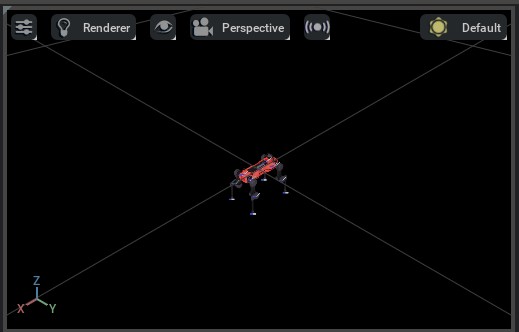
In this example, we use the pre-processed URDF file of the ANYmal-D robot. To check the pre-process URDF, please check the file the anymal.urdf. The main difference between the pre-processed URDF and the original URDF are:
We removed the
<gazebo>tag from the URDF. This tag is not supported by the URDF importer.We removed the
<transmission>tag from the URDF. This tag is not supported by the URDF importer.We removed various collision bodies from the URDF to reduce the complexity of the asset.
We changed all the joint’s damping and friction parameters to
0.0. On PhysX this ensures that we can perform effort-control on the joints without the imported drive adding damping of its own. On Newton the actuator configuration decides the target mode instead — see Joint drives on each physics backend.The
<dont_collapse>URDF tag is no longer supported in URDF importer 3.0. Fixed joint merging is now a Python pre-processing step that merges all fixed joints whenmerge_fixed_jointsis enabled. If you need to preserve a specific fixed joint, disablemerge_fixed_jointsentirely or restructure the URDF to use a non-fixed joint type (e.g. revolute with zero-range limits).
Map the ROS package directory with --ros_package_path NAME PATH so the importer can
resolve the robot’s package:// mesh references, including when fixed joints are merged.
The following shows the steps to clone the repository and run the converter:
# clone a repository with URDF files
git clone git@github.com:isaac-orbit/anymal_d_simple_description.git

# go to top of the Isaac Lab repository
cd IsaacLab
# run the converter
uv run --extra importers isaaclab -p scripts/tools/convert_urdf.py \
  ../anymal_d_simple_description/urdf/anymal.urdf \
  source/isaaclab_assets/data/Robots/ANYbotics/ \
  --merge_joints \
  --ros_package_path anymal_d_simple_description ../anymal_d_simple_description \
  --joint_stiffness 0.0 \
  --joint_damping 0.0 \
  --joint_target_type none \
  --viz kit
:: clone a repository with URDF files
git clone git@github.com:isaac-orbit/anymal_d_simple_description.git

:: go to top of the Isaac Lab repository
cd IsaacLab
:: run the converter
uv run --extra importers isaaclab -p scripts\tools\convert_urdf.py ^
  ..\anymal_d_simple_description\urdf\anymal.urdf ^
  source\isaaclab_assets\data\Robots\ANYbotics\ ^
  --merge_joints ^
  --ros_package_path anymal_d_simple_description ..\anymal_d_simple_description ^
  --joint_stiffness 0.0 ^
  --joint_damping 0.0 ^
  --joint_target_type none ^
  --viz kit
Executing the above script will create a USD file inside the
source/isaaclab_assets/data/Robots/ANYbotics/anymal/ directory (the subdirectory name
is derived automatically from the robot name in the URDF):
anymal.usda- This is the main asset file.
Note
The URDF importer auto-deduplicates the per-robot subdirectory when it already exists.
If you re-run the converter against the same usd_dir with a changed configuration
(for example, flipping fix_base), the importer writes to a new numbered folder
(anymal_1/, anymal_2/, …) rather than overwriting the previous output.
usd_path reflects whichever folder the importer
actually used. Delete stale subdirectories manually (or wipe usd_dir) if you do not
want them to accumulate on disk.
The examples pass --viz kit to open the converted asset in the Isaac Sim viewport, which
requires a full Isaac Sim installation. Use --viz newton_gl, --viz rerun, or --viz viser
for a kit-less preview instead. Omit --viz to exit as soon as the conversion completes.
Inspect the converted geometry and articulation in the viewer, then validate dynamics in the intended simulation backend. Check self-collisions, masses, inertias, and actuator gains if the asset is unstable.
Using MJCF Importer#
Similar to the URDF Importer, the MJCF Importer also has a GUI interface. Please check the documentation at
MJCF importer for more details. For using the MJCF importer from Python scripts, we include a utility tool
called convert_mjcf.py. This script creates an instance of MjcfConverterCfg
which is then passed to the MjcfConverter class.
The default values for the importer’s configuration parameters are specified in the
MjcfConverterCfg class. The configuration parameters are listed below.
We made a few commonly modified settings to be available as command-line arguments when calling the
convert_mjcf.py, and they are marked with * in the list. For a comprehensive list of the configuration
parameters, please check the documentation at MJCF importer.
Note
The MJCF importer was rewritten in Isaac Sim 5.0 to use the mujoco-usd-converter library.
Settings such as import_sites, import_inertia_tensor, and make_instanceable are no
longer needed — the converter now handles these automatically based on the MJCF file content.
Geometry, collisions, and materials#
merge_mesh* - Whether to merge meshes where possible to optimize the model. The command-line flag is--merge_mesh.collision_from_visuals* - Whether to generate collision geometry from visual geometries. The command-line flag is--collision_from_visuals.collision_type* - The collision shape simplification to apply. One of"Convex Hull"(default),"Convex Decomposition","Bounding Sphere", or"Bounding Cube". The command-line flag is--collision_type.self_collision* - Whether to activate self-collisions between links of the articulation. The command-line flag is--self_collision.
Articulation and physics#
fix_base- Whether to add a fixed joint between the world and the root rigid-body link. Defaults toFalse.link_density- Default density inkg/m^3for links whose<inertial>properties are missing in the MJCF.0.0(default) leaves densities unchanged.import_physics_scene* - Import physics scene properties (gravity, time step, etc.) from the MJCF file. Defaults toFalse. The command-line flag is--import_physics_scene.
Actuator overrides#
MuJoCo models actuators as an affine transformation tau = gain @ control + bias. The following
options override the values parsed from the MJCF on a per-actuator basis. Each defaults to None,
which leaves the parsed values unchanged.
override_gain_type- The actuator gain type override (e.g."fixed").override_bias_type- The actuator bias type override (e.g."affine").override_gain_prm- The actuator gain parameter array override. Example for position control:[kp, 0, 0, 0, 0, 0, 0, 0, 0, 0].override_bias_prm- The actuator bias parameter array override. Example for position control:[0, -kp, -kd, 0, 0, 0, 0, 0, 0, 0].
Asset resolution and output#
robot_type- Robot type applied by the USD robot schema. Defaults to"Default". Must be one of:"Default","End Effector","Manipulator","Humanoid","Wheeled","Holonomic","Quadruped","Mobile Manipulators","Aerial".run_asset_transformer- Run the asset transformer to convert the flattened USD into a layered USD (interface USD + payloads). Defaults toTrue.run_multi_physics_conversion- Convert compatible MuJoCo attributes to PhysX attributes (e.g. actuator gains), so the asset carries both backends. Note this is the opposite direction to the URDF importer. Defaults toTrue. See Multi-backend assets.debug_mode- Write intermediate conversion artifacts next to the output USD for inspection. Defaults toFalse.
For more detailed information on the configuration parameters, please check the documentation for MjcfConverterCfg.
Example Usage#
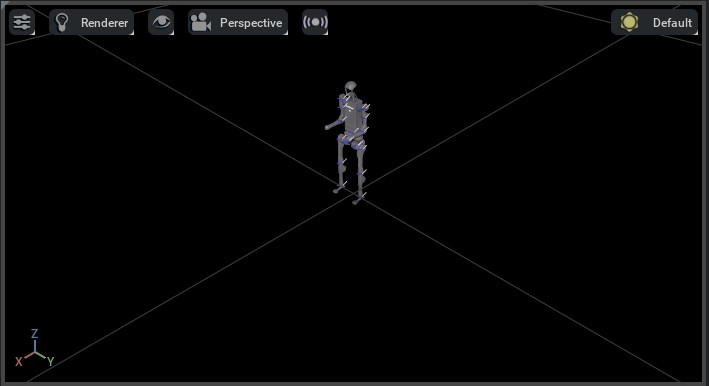
In this example, we use the MuJoCo model of the Unitree’s H1 humanoid robot in the mujoco_menagerie.
The following shows the steps to clone the repository and run the converter:
# clone a repository with MJCF files
git clone git@github.com:google-deepmind/mujoco_menagerie.git

# go to top of the Isaac Lab repository
cd IsaacLab
# run the converter
uv run --extra importers isaaclab -p scripts/tools/convert_mjcf.py \
  ../mujoco_menagerie/unitree_h1/h1.xml \
  source/isaaclab_assets/data/Robots/Unitree/h1.usd \
  --merge_mesh \
  --viz kit
:: clone a repository with MJCF files
git clone git@github.com:google-deepmind/mujoco_menagerie.git

:: go to top of the Isaac Lab repository
cd IsaacLab
:: run the converter
uv run --extra importers isaaclab -p scripts\tools\convert_mjcf.py ^
  ..\mujoco_menagerie\unitree_h1\h1.xml ^
  source\isaaclab_assets\data\Robots\Unitree\h1.usd ^
  --merge_mesh ^
  --viz kit
Executing the above script will create the USD file inside the
source/isaaclab_assets/data/Robots/Unitree/ directory:
h1.usd- This is the converted USD asset file.
Note
The MJCF importer auto-deduplicates the per-robot subdirectory when it already exists,
matching the URDF importer’s behavior. If you re-run the converter against the same
usd_dir with a changed configuration, the importer writes to a new numbered folder
(h1_1/, h1_2/, …) rather than overwriting the previous output.
usd_path reflects whichever folder the importer
actually used. Delete stale subdirectories manually (or wipe usd_dir) if you do not
want them to accumulate on disk.
See Previewing converted assets for the --viz options.
Joint drives on each physics backend#
The URDF and MJCF importers write joint drives into the USD. How those drives are then interpreted depends on the physics backend, and on whether an Isaac Lab actuator configuration takes over. (Mesh assets have no joints, so none of this applies to them.)
PhysX starts from the imported USD drive properties. Isaac Lab’s actuator configuration
can override the gains and limits before simulation. The ANYmal example above passes
--joint_stiffness 0.0 --joint_damping 0.0 --joint_target_type none so the imported
drive does not add PD effort when the asset is used for effort control.
Newton resolves the target mode from the Isaac Lab actuator configuration instead of from the
USD alone. When an articulation uses an Isaac Lab actuator configuration, Newton resolves
each configured joint’s target mode before constructing the solver. For an
ImplicitActuatorCfg, stiffness-only, damping-only,
both-gain, and zero-gain configurations select position, velocity, combined
position/velocity, and effort modes respectively. A gain set to None keeps
the corresponding imported USD value. An explicit actuator configuration uses
effort mode because Isaac Lab computes its effort directly.
Joints without an Isaac Lab actuator configuration retain their imported USD settings.
Consequently, an asset with zero-gain USD drives no longer needs
ensure_drives_exist solely
to make configured joints actuate in Newton.
The ensure_drives_exist option remains useful when a workflow needs to
author placeholder drives independently of an Isaac Lab actuator configuration.
When enabled, it assigns a minimal placeholder stiffness (1e-3) to zero-gain
drives before simulation startup so that every drive exists in the imported
model.
Using Mesh Importer#
Omniverse Kit includes the mesh converter tool that uses the ASSIMP library to import assets from various mesh formats (e.g. OBJ, FBX, STL, glTF, etc.). The asset converter tool is available as an extension to Omniverse Kit. Please check the asset converter documentation for more details. However, unlike Isaac Sim’s URDF and MJCF importers, the asset converter tool does not support creating instanceable assets. This means that the asset will be loaded into memory multiple times if it is used multiple times in a scene.
Thus, we include a utility tool called convert_mesh.py that uses the asset converter tool to
import the asset and then converts it into an instanceable asset. Internally, this script creates
an instance of MeshConverterCfg which is then passed to the
MeshConverter class. Since the mesh file does not contain any physics
information, the configuration class accepts different physics properties (such as mass, collision
shape, etc.) as input. Please check the documentation for MeshConverterCfg
for more details.
Example Usage#
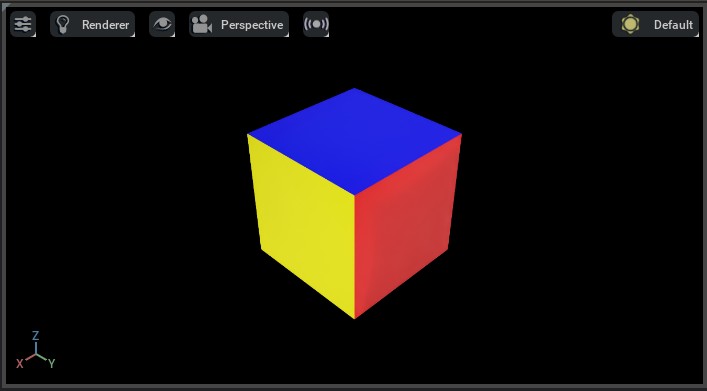
We use an OBJ file of a cube to demonstrate the usage of the mesh converter. The following shows the steps to clone the repository and run the converter:
# clone a repository with mesh files
git clone git@github.com:NVIDIA-Omniverse/IsaacGymEnvs.git

# go to top of the Isaac Lab repository
cd IsaacLab
# run the converter
uv run isaaclab -p scripts/tools/convert_mesh.py \
  ../IsaacGymEnvs/assets/trifinger/objects/meshes/cube_multicolor.obj \
  source/isaaclab_assets/data/Props/CubeMultiColor/cube_multicolor.usd \
  --make-instanceable \
  --collision-approximation convexDecomposition \
  --mass 1.0 \
  --viz kit
:: clone a repository with mesh files
git clone git@github.com:NVIDIA-Omniverse/IsaacGymEnvs.git

:: go to top of the Isaac Lab repository
cd IsaacLab
:: run the converter
uv run isaaclab -p scripts\tools\convert_mesh.py ^
  ..\IsaacGymEnvs\assets\trifinger\objects\meshes\cube_multicolor.obj ^
  source\isaaclab_assets\data\Props\CubeMultiColor\cube_multicolor.usd ^
  --make-instanceable ^
  --collision-approximation convexDecomposition ^
  --mass 1.0 ^
  --viz kit
The mesh converter requires Isaac Sim. The command writes the converted USD and its
instanceable mesh payload under source/isaaclab_assets/data/Props/CubeMultiColor/ and opens
the Isaac Sim viewport. Select the asset and press F to frame it in the viewport.
Omit --viz kit to convert without opening a preview.
If you do not set the
--massflag, then no rigid body properties will be added to the asset. It will be imported as a static asset.Set
--collision-approximation noneto omit collider properties. The default isconvexDecomposition, so omitting this flag still creates collision geometry.