

Visualization#
Isaac Lab offers several lightweight visualizers for real-time simulation inspection and debugging. Unlike renderers that process sensor data, visualizers are meant for fast, interactive feedback.
You can use any visualizer regardless of your chosen physics engine or rendering backend.
Overview#
Isaac Lab supports three visualizer backends, each optimized for different use cases:
Visualizer |
Best For |
Key Features |
|---|---|---|
Omniverse |
High-fidelity, Isaac Sim integration |
USD, visual markers, live plots |
Newton |
Fast iteration |
Low overhead, visual markers |
Rerun |
Remote viewing, replay |
Webviewer, time scrubbing, recording export |
The following visualizers are shown training the Isaac-Velocity-Flat-Anymal-D-v0 environment.
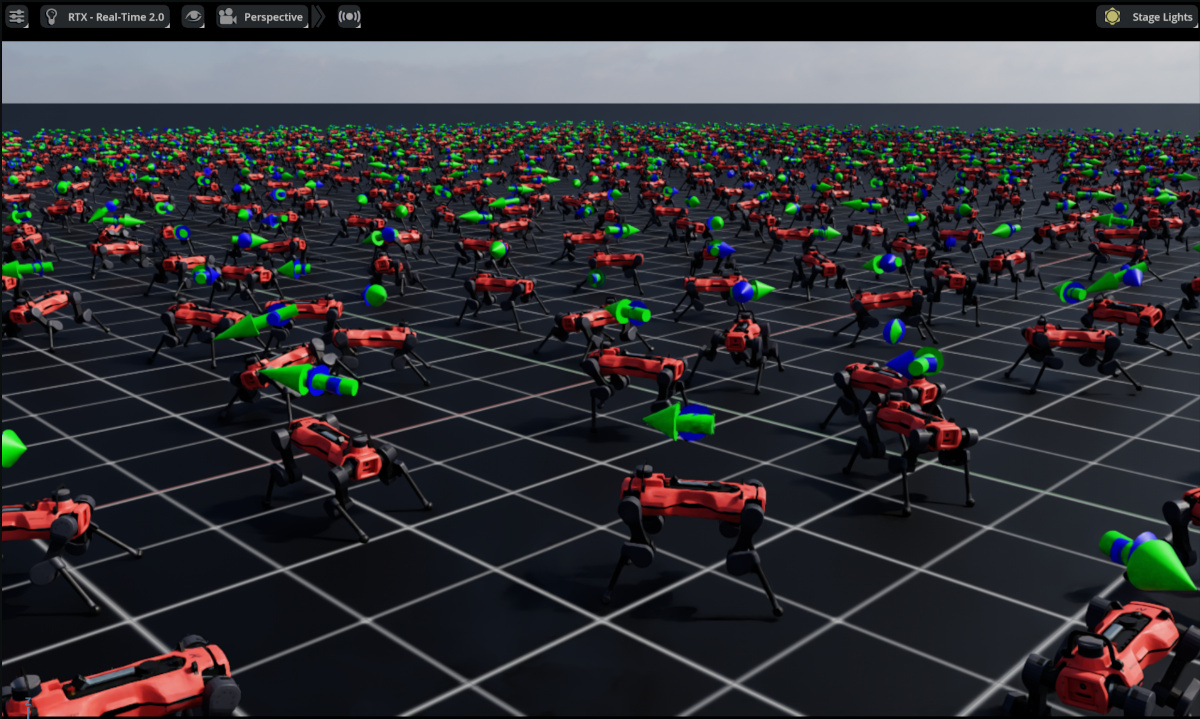
Omniverse Visualizer#
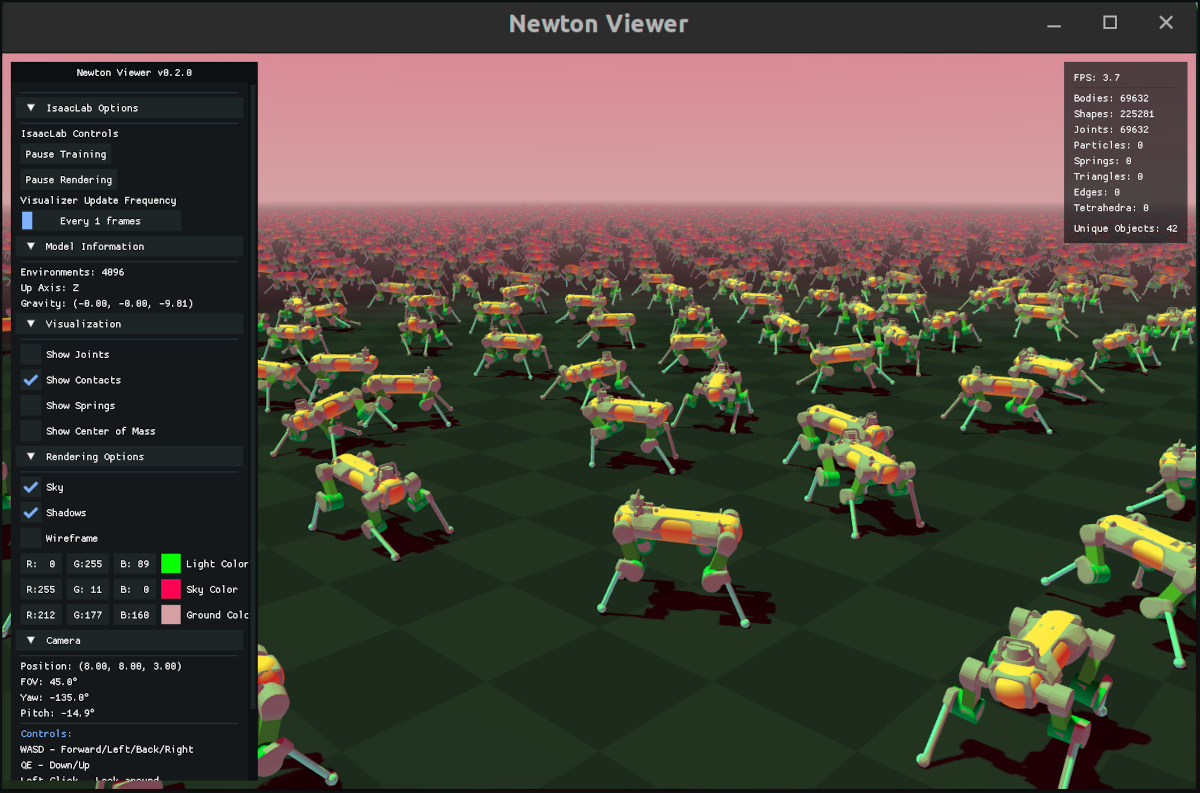
Newton Visualizer#
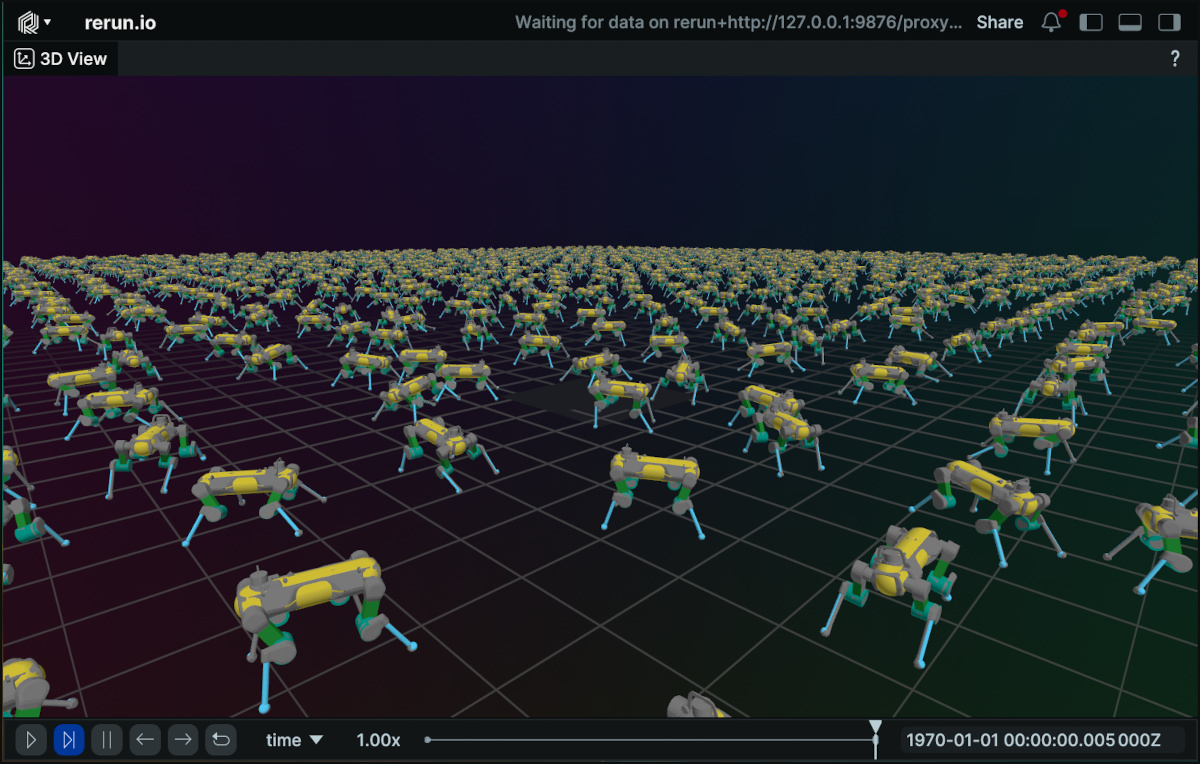
Rerun Visualizer#
Quick Start#
Launch visualizers from the command line with --visualizer:
# Launch all visualizers (comma-delimited list, no spaces)
python scripts/reinforcement_learning/rsl_rl/train.py --task Isaac-Cartpole-v0 --visualizer kit,newton,rerun

# Launch just newton visualizer
python scripts/reinforcement_learning/rsl_rl/train.py --task Isaac-Cartpole-v0 --visualizer newton
If --headless is given, no visualizers will be launched.
Note
The --headless argument may be deprecated in future versions to avoid confusion with the --visualizer
argument. For now, --headless takes precedence and disables all visualizers.
Configuration#
Launching visualizers with the command line will use default visualizer configurations. Visualizer backends live in the isaaclab_visualizers package (e.g. source/isaaclab_visualizers/isaaclab_visualizers/kit, newton, rerun).
You can also configure custom visualizers in the code by defining VisualizerCfg instances for the SimulationCfg, for example:
from isaaclab.sim import SimulationCfg
from isaaclab_visualizers.kit import KitVisualizerCfg
from isaaclab_visualizers.newton import NewtonVisualizerCfg
from isaaclab_visualizers.rerun import RerunVisualizerCfg

sim_cfg = SimulationCfg(
    visualizer_cfgs=[
        KitVisualizerCfg(
            viewport_name="Visualizer Viewport",
            create_viewport=True,
            dock_position="SAME",
            window_width=1280,
            window_height=720,
            camera_position=(0.0, 0.0, 20.0), # high top down view
            camera_target=(0.0, 0.0, 0.0),
        ),
        NewtonVisualizerCfg(
            camera_position=(5.0, 5.0, 5.0), # closer quarter view
            camera_target=(0.0, 0.0, 0.0),
            show_joints=True,
        ),
        RerunVisualizerCfg(
            keep_historical_data=True,
            keep_scalar_history=True,
            record_to_rrd="my_training.rrd",
        ),
    ]
)
Visualizer Backends#
Omniverse Visualizer#
Main Features:
Native USD stage integration
Visualization markers for debugging (arrows, frames, points, etc.)
Live plots for monitoring training metrics
Full Isaac Sim rendering capabilities and tooling
Core Configuration:
from isaaclab_visualizers.kit import KitVisualizerCfg

visualizer_cfg = KitVisualizerCfg(
    # Viewport settings
    viewport_name="Visualizer Viewport",      # Viewport window name
    create_viewport=True,                     # Create new viewport vs. use existing
    dock_position="SAME",                     # Docking: 'LEFT', 'RIGHT', 'BOTTOM', 'SAME'
    window_width=1280,                        # Viewport width in pixels
    window_height=720,                        # Viewport height in pixels

    # Camera settings
    camera_position=(8.0, 8.0, 3.0),         # Initial camera position (x, y, z)
    camera_target=(0.0, 0.0, 0.0),           # Camera look-at target

    # Feature toggles
    enable_markers=True,                      # Enable visualization markers
    enable_live_plots=True,                   # Enable live plots (auto-expands frames)
)
Newton Visualizer#
Main Features:
Lightweight OpenGL rendering with low overhead
Visualization markers (joints, contacts, springs, COM)
Training and rendering pause controls
Adjustable update frequency for performance tuning
Some customizable rendering options (shadows, sky, wireframe)
Interactive Controls:
Key/Input |
Action |
|---|---|
W, A, S, D or Arrow Keys |
Forward / Left / Back / Right |
Q, E |
Down / Up |
Left Click + Drag |
Look around |
Mouse Scroll |
Zoom in/out |
H |
Toggle UI sidebar |
ESC |
Exit viewer |
Core Configuration:
from isaaclab_visualizers.newton import NewtonVisualizerCfg

visualizer_cfg = NewtonVisualizerCfg(
    # Window settings
    window_width=1920,                        # Window width in pixels
    window_height=1080,                       # Window height in pixels

    # Camera settings
    camera_position=(8.0, 8.0, 3.0),         # Initial camera position (x, y, z)
    camera_target=(0.0, 0.0, 0.0),           # Camera look-at target

    # Performance tuning
    update_frequency=1,                       # Update every N frames (1=every frame)

    # Physics debug visualization
    show_joints=False,                        # Show joint visualizations
    show_contacts=False,                      # Show contact points and normals
    show_springs=False,                       # Show spring constraints
    show_com=False,                           # Show center of mass markers

    # Rendering options
    enable_shadows=True,                      # Enable shadow rendering
    enable_sky=True,                          # Enable sky rendering
    enable_wireframe=False,                   # Enable wireframe mode

    # Color customization
    background_color=(0.53, 0.81, 0.92),     # Sky/background color (RGB [0,1])
    ground_color=(0.18, 0.20, 0.25),         # Ground plane color (RGB [0,1])
    light_color=(1.0, 1.0, 1.0),             # Directional light color (RGB [0,1])
)
Rerun Visualizer#
Main Features:
Web viewer interface accessible from local or remote browser
Metadata logging and filtering
Recording to .rrd files for offline replay (.rrd files can be opened with ctrl+O from the web viewer)
Timeline scrubbing and playback controls of recordings
Core Configuration:
from isaaclab_visualizers.rerun import RerunVisualizerCfg

visualizer_cfg = RerunVisualizerCfg(
    # Server settings
    app_id="isaaclab-simulation",             # Application identifier for viewer
    grpc_port=9876,                           # gRPC endpoint for logging SDK connection
    web_port=9090,                            # Port for local web viewer (launched in browser)
    bind_address="0.0.0.0",                  # Endpoint host formatting/reuse checks

    # Camera settings
    camera_position=(8.0, 8.0, 3.0),         # Initial camera position (x, y, z)
    camera_target=(0.0, 0.0, 0.0),           # Camera look-at target

    # History settings
    keep_historical_data=False,               # Keep transforms for time scrubbing
    keep_scalar_history=False,                # Keep scalar/plot history

    # Recording
    record_to_rrd="recording.rrd",            # Path to save .rrd file (None = no recording)
)
Rerun startup uses the Python SDK through newton.viewer.ViewerRerun (no external rerun CLI process
management). If grpc_port is already active, Isaac Lab reuses that server. If web_port is occupied while
starting a new server, initialization fails with a clear port-conflict error.
Performance Note#
To reduce overhead when visualizing large-scale environments, consider:
Using Newton instead of Omniverse or Rerun
Reducing window sizes
Higher update frequencies
Pausing visualizers while they are not being used
Limitations#
Rerun Visualizer Performance
The Rerun web-based visualizer may experience performance issues or crashes when visualizing large-scale
environments. For large-scale simulations, the Newton visualizer is recommended. Alternatively, to reduce load,
the num of environments can be overwritten and decreased using --num_envs:
python scripts/reinforcement_learning/rsl_rl/train.py --task Isaac-Cartpole-v0 --visualizer rerun --num_envs 512
Note
A future feature will support visualizing only a subset of environments, which will improve visualization performance and reduce resource usage while maintaining full-scale training in the background.
Rerun Visualizer FPS Control
The FPS control in the Rerun visualizer UI may not affect the visualization frame rate in all configurations.
Newton Visualizer Contact and Center of Mass Markers
Contact and center of mass markers are not yet supported in the Newton visualizer. This will be addressed in a future release.
Newton Visualizer CUDA/OpenGL Interoperability Warnings
On some system configurations, the Newton visualizer may display warnings about CUDA/OpenGL interoperability:
Warning: Could not get MSAA config, falling back to non-AA.
Warp CUDA error 999: unknown error (in function wp_cuda_graphics_register_gl_buffer)
Warp UserWarning: Could not register GL buffer since CUDA/OpenGL interoperability
is not available. Falling back to copy operations between the Warp array and the
OpenGL buffer.
The visualizer will still function correctly but may experience reduced performance due to falling back to CPU copy operations instead of direct GPU memory sharing.