



Interacting with a deformable object#
Spawn soft cubes, set their nodal positions and velocities, and use kinematic
commands to move selected nodes. This tutorial works with volume deformables;
for cloth, run the deformables example.
The asset API is shared across backends. PhysX uses finite elements, while Newton uses VBD. See Deformables for supported body types and Deformable bodies for configuration. For PhysX simulation and collision mesh details, see the PhysX documentation.
Note
This tutorial automatically tetrahedralizes volume deformables, and its default
visualizer is Kit. Run it with the isaacsim and tetrahedralization extras:
uv run --extra isaacsim --extra tetrahedralization python scripts/tutorials/01_assets/run_deformable_object.py --visualizer kit
To install the optional dependencies explicitly:
uv sync --extra tetrahedralization
The Code#
The tutorial corresponds to the run_deformable_object.py script in the scripts/tutorials/01_assets directory.
Code for run_deformable_object.py
  1# Copyright (c) 2022-2026, The Isaac Lab Project Developers (https://github.com/isaac-sim/IsaacLab/blob/main/CONTRIBUTORS.md).
  2# All rights reserved.
  3#
  4# SPDX-License-Identifier: BSD-3-Clause
  5
  6"""
  7This script demonstrates how to work with the deformable object and interact with it.
  8
  9.. code-block:: bash
 10
 11    # Usage with default PhysX physics and default kit visualizer.
 12    uv run --extra isaacsim --extra tetrahedralization python scripts/tutorials/01_assets/run_deformable_object.py
 13
 14    # Usage with Newton VBD physics and default kit visualizer.
 15    uv run --extra isaacsim --extra tetrahedralization python scripts/tutorials/01_assets/run_deformable_object.py \
 16        --backend newton_vbd
 17
 18    # Usage with OvPhysX physics without a visualizer.
 19    uv run --extra ovphysx --extra tetrahedralization python scripts/tutorials/01_assets/run_deformable_object.py \
 20        --backend ovphysx
 21
 22"""
 23
 24"""Parse CLI first so we can decide whether to launch Isaac Sim Kit."""
 25
 26import argparse
 27from typing import TYPE_CHECKING
 28
 29from isaaclab.app import add_launcher_args, launch_simulation
 30
 31# add argparse arguments
 32parser = argparse.ArgumentParser(description="Tutorial on interacting with a deformable object.")
 33parser.add_argument(
 34    "--backend", type=str, default="physx", choices=["physx", "newton_vbd", "ovphysx"], help="Physics backend."
 35)
 36# append simulation launcher CLI arguments
 37add_launcher_args(parser)
 38# Kit cannot be combined with OvPhysX, so use no visualizer by default for that backend
 39backend_args, _ = parser.parse_known_args()
 40parser.set_defaults(visualizer=None if backend_args.backend == "ovphysx" else ["kit"])
 41# parse the arguments
 42args_cli = parser.parse_args()
 43args_cli.physics = args_cli.backend
 44
 45"""Rest everything follows."""
 46
 47import torch
 48
 49import isaaclab.sim as sim_utils
 50import isaaclab.utils.math as math_utils
 51from isaaclab.assets import AssetBaseCfg, DeformableObjectCfg
 52from isaaclab.cloner import CloneCfg
 53from isaaclab.scene import InteractiveSceneCfg
 54from isaaclab.utils import configclass, index_fill_, instantiate
 55
 56if TYPE_CHECKING:
 57    from isaaclab.assets import DeformableObject
 58    from isaaclab.scene import InteractiveScene
 59
 60
 61youngs_modulus = 1e5
 62poissons_ratio = 0.4
 63density = 500.0
 64if args_cli.backend == "newton_vbd":
 65    from isaaclab_newton.sim.spawners.materials import NewtonDeformableBodyMaterialCfg
 66
 67    # Newton's VBD path skips the simulation mesh collider, so collision offsets do not apply
 68    collision_props = None
 69    physics_material = NewtonDeformableBodyMaterialCfg(
 70        k_mu=youngs_modulus / (2.0 * (1.0 + poissons_ratio)),
 71        k_lambda=youngs_modulus * poissons_ratio / ((1.0 + poissons_ratio) * (1.0 - 2.0 * poissons_ratio)),
 72        density=density,
 73    )
 74else:
 75    from isaaclab_physx.sim.schemas import PhysxCollisionCfg
 76    from isaaclab_physx.sim.spawners.materials import PhysxDeformableBodyMaterialCfg
 77
 78    collision_props = [PhysxCollisionCfg(rest_offset=0.0, contact_offset=0.001)]
 79    physics_material = PhysxDeformableBodyMaterialCfg(
 80        poissons_ratio=poissons_ratio, youngs_modulus=youngs_modulus, density=density
 81    )
 82
 83
 84@configclass
 85class DeformableSceneCfg(InteractiveSceneCfg):
 86    """Soft cubes on a shared ground plane."""
 87
 88    filter_collisions = False
 89    clone_cfg = CloneCfg(clone_template="/World/env_{}")
 90
 91    ground = AssetBaseCfg(prim_path="/World/defaultGroundPlane", spawn=sim_utils.GroundPlaneCfg())
 92    light = AssetBaseCfg(
 93        prim_path="/World/Light", spawn=sim_utils.DomeLightCfg(intensity=2000.0, color=(0.8, 0.8, 0.8))
 94    )
 95
 96    # 3D Deformable Object
 97    cube_object = DeformableObjectCfg(
 98        prim_path="{ENV_REGEX_NS}/Cube",
 99        # PhysX deformables must be parsed from USD while other assets retain native replication.
100        cloning_contexts=("isaaclab.cloner:UsdReplicateContext",) if args_cli.backend == "physx" else None,
101        spawn=sim_utils.MeshCuboidCfg(
102            size=(0.2, 0.2, 0.2),
103            volume_deformable_props=[],
104            collision_props=collision_props,
105            visual_material=sim_utils.PreviewSurfaceCfg(diffuse_color=(0.5, 0.1, 0.0)),
106            physics_material=physics_material,
107        ),
108        init_state=DeformableObjectCfg.InitialStateCfg(pos=(0.0, 0.0, 1.0)),
109        debug_vis=True,
110    )
111
112
113def run_simulator(sim: sim_utils.SimulationContext, scene: "InteractiveScene"):
114    """Runs the simulation loop."""
115    # Extract scene entities
116    cube_object: DeformableObject = scene["cube_object"]
117
118    # Define simulation stepping
119    sim_dt = sim.get_physics_dt()
120    sim_time = 0.0
121    count = 0
122
123    # Nodal kinematic targets of the deformable bodies
124    nodal_kinematic_target = cube_object.data.nodal_kinematic_target.torch.clone()
125
126    # Simulate physics
127    while sim.is_running():
128        # reset at start and after 3 seconds
129        if count % int(3.0 / sim_dt) == 0:
130            # reset counters
131            count = 0
132
133            # reset the nodal state of the object
134            nodal_state = cube_object.data.default_nodal_state_w.torch.clone()
135            # apply random pose to the object
136            pos_w = torch.rand(cube_object.num_instances, 3, device=sim.device) * 0.1 + scene.env_origins
137            quat_w = math_utils.random_orientation(cube_object.num_instances, device=sim.device)
138            nodal_state[..., :3] = cube_object.transform_nodal_pos(nodal_state[..., :3], pos_w, quat_w)
139
140            # write nodal state to simulation
141            cube_object.write_nodal_state_to_sim_index(nodal_state)
142
143            # Write the nodal state to the kinematic target and free all vertices
144            nodal_kinematic_target[..., :3] = nodal_state[..., :3]
145            nodal_kinematic_target[..., 3] = 1.0
146            cube_object.write_nodal_kinematic_target_to_sim_index(nodal_kinematic_target)
147
148            # reset buffers
149            cube_object.reset()
150
151            print("----------------------------------------")
152            print("[INFO]: Resetting object state...")
153
154        # update the kinematic target for cubes at the positive and negative diagonal corners
155        kinematic_cubes = [1, 2]
156        # we slightly move the cube in the z-direction by picking the vertex at index 0
157        nodal_kinematic_target[kinematic_cubes, 0, 2] += 0.2 * sim_dt
158        # set vertex at index 0 to be kinematically constrained
159        # 0: constrained, 1: free
160        index_fill_(nodal_kinematic_target[:, 0, 3], kinematic_cubes, 0.0)
161        # write kinematic target to simulation
162        cube_object.write_nodal_kinematic_target_to_sim_index(nodal_kinematic_target)
163
164        # write internal data to simulation
165        cube_object.write_data_to_sim()
166        # perform step
167        sim.step()
168        # update sim-time
169        sim_time += sim_dt
170        count += 1
171        # update buffers
172        cube_object.update(sim_dt)
173
174        # print the root positions every second
175        if count % int(1.0 / sim_dt) == 0:
176            print(f"Time {sim_time:.2f}s: \tRoot position (in world): {cube_object.data.root_pos_w.torch[:, :3]}")
177
178
179def main():
180    """Main function."""
181    sim_cfg = sim_utils.SimulationCfg(dt=0.01, device=args_cli.device)
182    with launch_simulation(sim_cfg, args_cli) as physics_cfg:
183        if args_cli.backend == "newton_vbd":
184            physics_cfg.solver_cfg.iterations = 10
185            physics_cfg.num_substeps = 4
186        sim = sim_utils.SimulationContext(sim_cfg)
187        # Set main camera
188        sim.set_camera_view(eye=[2.0, 2.0, 2.0], target=[0.0, 0.0, 0.75])
189        scene_cfg = DeformableSceneCfg(num_envs=4, env_spacing=0.5)
190        scene = instantiate(scene_cfg)
191        # Play the simulator
192        sim.reset()
193        # Now we are ready!
194        print("[INFO]: Setup complete...")
195        # Run the simulator
196        run_simulator(sim, scene)
197        print("[INFO]: Simulation complete...")
198
199
200if __name__ == "__main__":
201    # run the main function
202    main()
The Code Explained#
Designing the scene#
We declare the ground plane, light, and deformable cube in a subclass of scene.InteractiveSceneCfg.
scene.InteractiveScene constructs the assets and handles replication internally.
DeformableSceneCfg(num_envs=4, env_spacing=0.5) selects four environment origins on a centered grid
with 0.5 m spacing.
In this tutorial, we create a cubical soft object using the spawn configuration similar to the deformable cube
in the Spawn Objects tutorial. The only difference is that now we wrap
the spawning configuration into the assets.DeformableObjectCfg class. This class contains information about
the asset’s spawning strategy and default initial state. When this class is passed to
the assets.DeformableObject class, it spawns the object and initializes the corresponding physics handles
when the simulation is played.
Note
Deformable objects require a mesh spawned with a volume_deformable_props slot
(surface_deformable_props for cloth) and a matching deformable physics material.
An empty slot uses backend defaults.
Use --backend physx for the PhysX implementation or --backend newton_vbd for the experimental Newton
implementation.
The scene constructs the deformable objects from their cfg and owns their clone lifecycle.
The simulation loop accesses the resulting asset through scene["cube_object"].
@configclass
class DeformableSceneCfg(InteractiveSceneCfg):
    """Soft cubes on a shared ground plane."""

    filter_collisions = False
    clone_cfg = CloneCfg(clone_template="/World/env_{}")

    ground = AssetBaseCfg(prim_path="/World/defaultGroundPlane", spawn=sim_utils.GroundPlaneCfg())
    light = AssetBaseCfg(
        prim_path="/World/Light", spawn=sim_utils.DomeLightCfg(intensity=2000.0, color=(0.8, 0.8, 0.8))
    )

    # 3D Deformable Object
    cube_object = DeformableObjectCfg(
        prim_path="{ENV_REGEX_NS}/Cube",
        # PhysX deformables must be parsed from USD while other assets retain native replication.
        cloning_contexts=("isaaclab.cloner:UsdReplicateContext",) if args_cli.backend == "physx" else None,
        spawn=sim_utils.MeshCuboidCfg(
            size=(0.2, 0.2, 0.2),
            volume_deformable_props=[],
            collision_props=collision_props,
            visual_material=sim_utils.PreviewSurfaceCfg(diffuse_color=(0.5, 0.1, 0.0)),
            physics_material=physics_material,
        ),
        init_state=DeformableObjectCfg.InitialStateCfg(pos=(0.0, 0.0, 1.0)),
        debug_vis=True,
    )
Running the simulation loop#
Continuing from the rigid body tutorial, we reset the simulation at regular intervals, apply kinematic commands to the deformable body, step the simulation, and update the deformable object’s internal buffers.
Resetting the simulation state#
Unlike rigid bodies and articulations, deformable objects have a different state representation. The state of a
deformable object is defined by the nodal positions and velocities of the mesh. The nodal positions and velocities
are defined in the simulation world frame and are stored in the assets.DeformableObject.data attribute.
We use the assets.DeformableObject.data.default_nodal_state_w attribute to get the default nodal state of the
spawned object prims. This default state can be configured from the assets.DeformableObjectCfg.init_state
attribute, which places the cube 1 m above its environment origin in this tutorial.
Attention
The initial state in the configuration assets.DeformableObjectCfg specifies the pose
of the deformable object at the time of spawning. Based on this initial state, the default nodal state is
obtained when the simulation is played for the first time.
We apply transformations to the nodal positions to randomize the initial state of the deformable object.
            # reset the nodal state of the object
            nodal_state = cube_object.data.default_nodal_state_w.torch.clone()
            # apply random pose to the object
            pos_w = torch.rand(cube_object.num_instances, 3, device=sim.device) * 0.1 + scene.env_origins
            quat_w = math_utils.random_orientation(cube_object.num_instances, device=sim.device)
            nodal_state[..., :3] = cube_object.transform_nodal_pos(nodal_state[..., :3], pos_w, quat_w)
To reset the deformable object, we first set the nodal state by calling the assets.DeformableObject.write_nodal_state_to_sim()
method. This method writes the nodal state of the deformable object prim into the simulation buffer.
Additionally, we free all the kinematic targets set for the nodes in the previous simulation step by calling
the assets.DeformableObject.write_nodal_kinematic_target_to_sim() method. We explain the
kinematic targets in the next section.
Finally, we call the assets.DeformableObject.reset() method to reset any internal buffers and caches.
            # write nodal state to simulation
            cube_object.write_nodal_state_to_sim_index(nodal_state)

            # Write the nodal state to the kinematic target and free all vertices
            nodal_kinematic_target[..., :3] = nodal_state[..., :3]
            nodal_kinematic_target[..., 3] = 1.0
            cube_object.write_nodal_kinematic_target_to_sim_index(nodal_kinematic_target)

            # reset buffers
            cube_object.reset()
Stepping the simulation#
Deformable bodies support user-driven kinematic control where a user can specify position targets for some of the mesh nodes while the rest of the nodes are simulated by the active deformable solver. This partial kinematic control is useful for applications where the user wants to interact with the deformable object in a controlled manner.
In this tutorial, we apply kinematic commands to two out of the four cubes in the scene. We set the position targets for the node at index 0 (bottom-left corner) to move the cube along the z-axis.
At every step, we increment the kinematic position target for the node by a small value. Additionally,
we set the flag to indicate that the target is a kinematic target for that node in the simulation buffer.
These are set into the simulation buffer by calling the assets.DeformableObject.write_nodal_kinematic_target_to_sim()
method.
        # update the kinematic target for cubes at the positive and negative diagonal corners
        kinematic_cubes = [1, 2]
        # we slightly move the cube in the z-direction by picking the vertex at index 0
        nodal_kinematic_target[kinematic_cubes, 0, 2] += 0.2 * sim_dt
        # set vertex at index 0 to be kinematically constrained
        # 0: constrained, 1: free
        index_fill_(nodal_kinematic_target[:, 0, 3], kinematic_cubes, 0.0)
        # write kinematic target to simulation
        cube_object.write_nodal_kinematic_target_to_sim_index(nodal_kinematic_target)
Similar to the rigid object and articulation, we perform the assets.DeformableObject.write_data_to_sim() method
before stepping the simulation. For deformable objects, this method does not apply any external forces to the object.
However, we keep this method for completeness and future extensions.
        # write internal data to simulation
        cube_object.write_data_to_sim()
Updating the state#
After stepping the simulation, we update the internal buffers of the deformable object prims to reflect their new state
inside the assets.DeformableObject.data attribute. This is done using the assets.DeformableObject.update() method.
At a fixed interval, we print the root position of the deformable object to the terminal. As mentioned earlier, there is no concept of a root state for deformable objects. However, we compute the root position as the average position of all the nodes in the mesh.
        # update buffers
        cube_object.update(sim_dt)

        # print the root positions every second
        if count % int(1.0 / sim_dt) == 0:
            print(f"Time {sim_time:.2f}s: \tRoot position (in world): {cube_object.data.root_pos_w.torch[:, :3]}")
The Code Execution#
Now that we have gone through the code, let’s run the script and see the result:
uv run --extra isaacsim --extra tetrahedralization python scripts/tutorials/01_assets/run_deformable_object.py --visualizer kit
To run the same tutorial with the experimental Newton deformable backend:
uv run --extra isaacsim --extra tetrahedralization python scripts/tutorials/01_assets/run_deformable_object.py --backend newton_vbd --visualizer kit
This should open a stage with a ground plane, lights, and several cubes. Two of the four cubes must be dropping
from a height and settling on to the ground. Meanwhile the other two cubes must be moving along the z-axis. You
should see a marker showing the kinematic target position for the nodes at the bottom-left corner of the cubes.
To stop the simulation, you can either close the window, or press Ctrl+C in the terminal
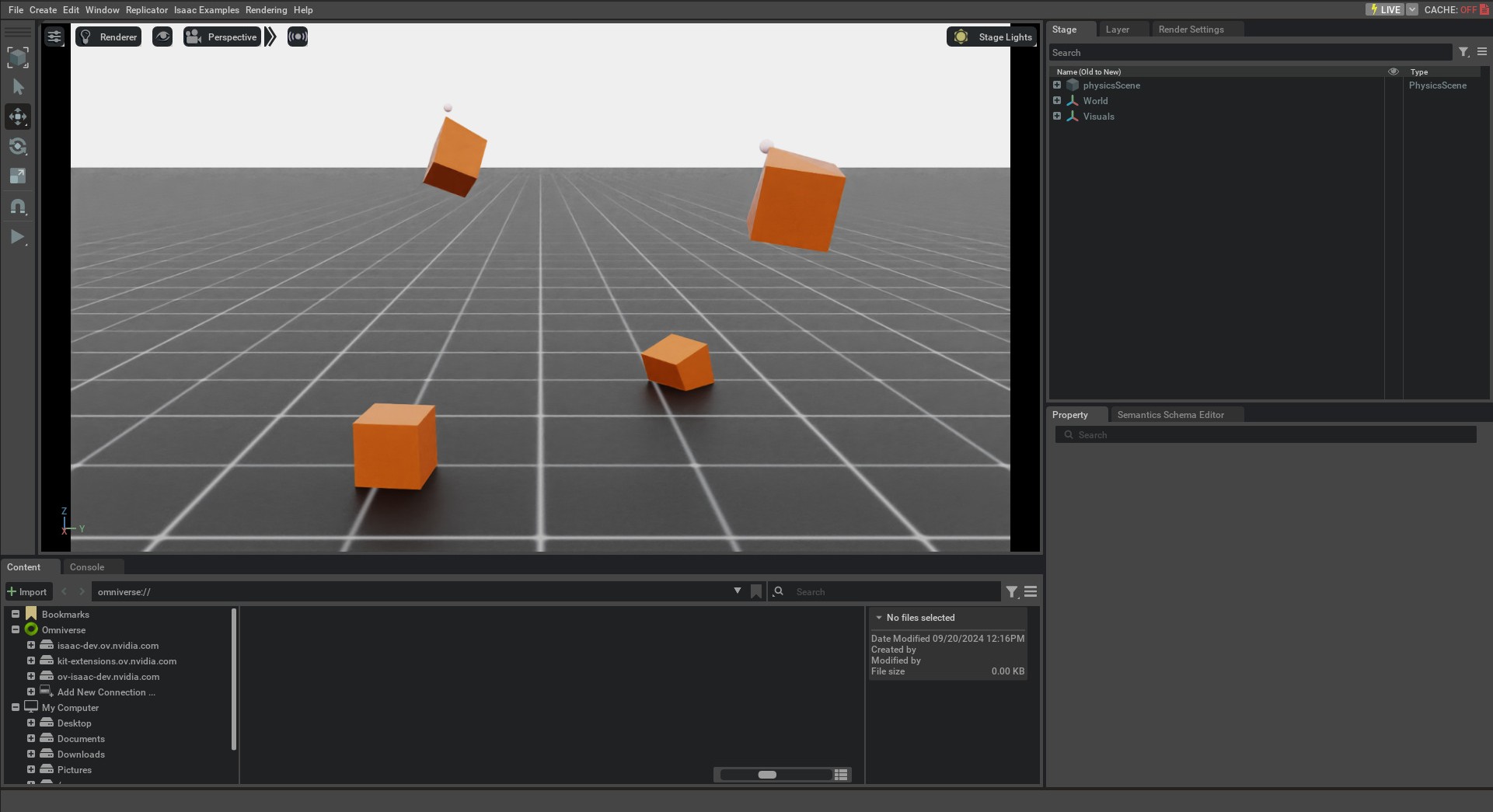
This tutorial showed how to spawn deformable objects and wrap them in a DeformableObject class to initialize their
physics handles which allows setting and obtaining their state. We also saw how to apply kinematic commands to the
deformable object to move the mesh nodes in a controlled manner. The deformables example provides a more advanced
example, including surface deformables, loading USD assets, and applying deformable materials.